User guide
4. Translation memory (Translation Memory tab)
The translation memory (TM) stores approved sentence pairs. When a new document contains the same sentence, the TM fills it in (100% match) at no word cost; similar sentences are offered as suggestions in the editor.
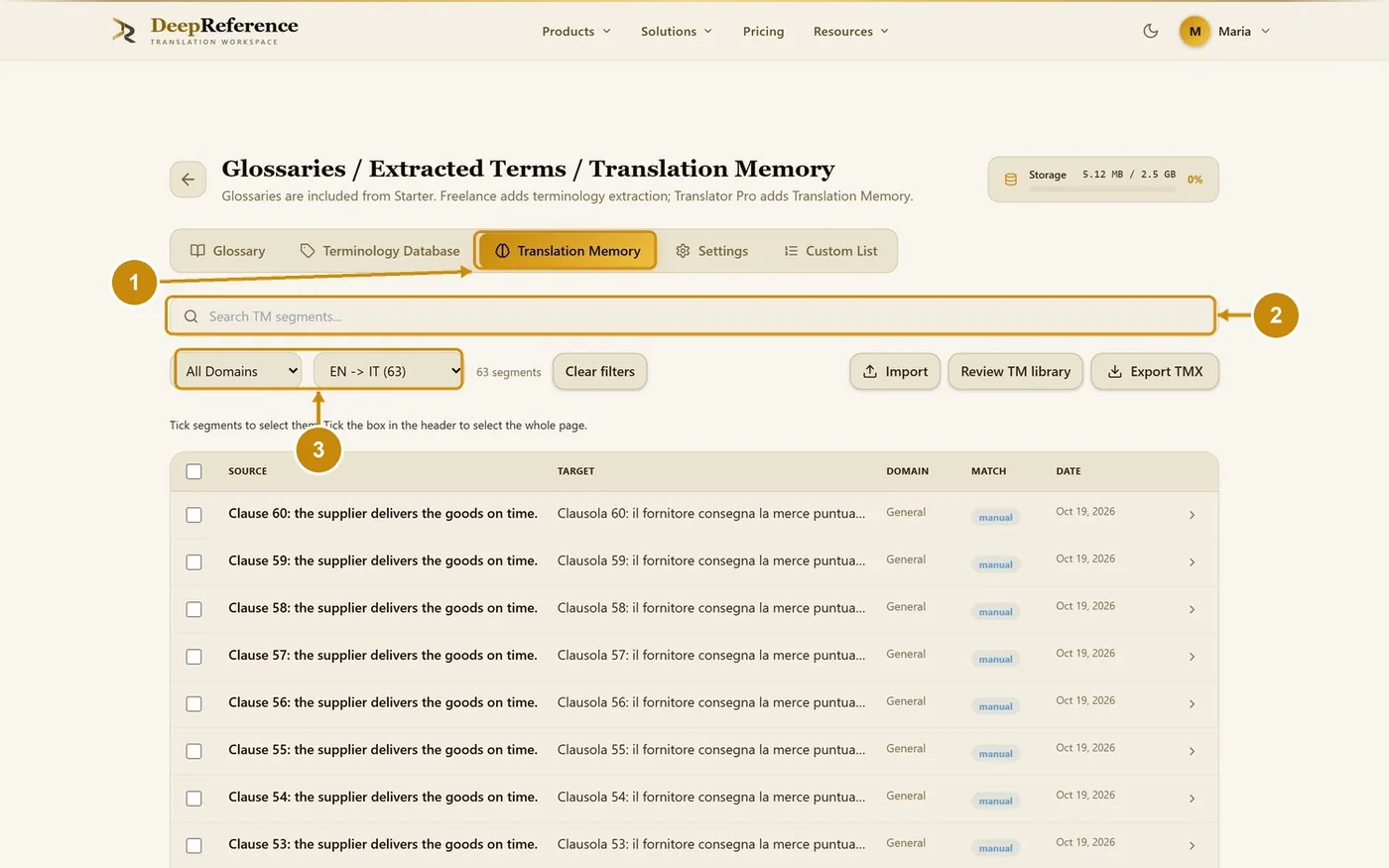
Open the Translation Memory tab.
Search the segments.
Filter by domain and language pair.
4.1 Import a TMX file
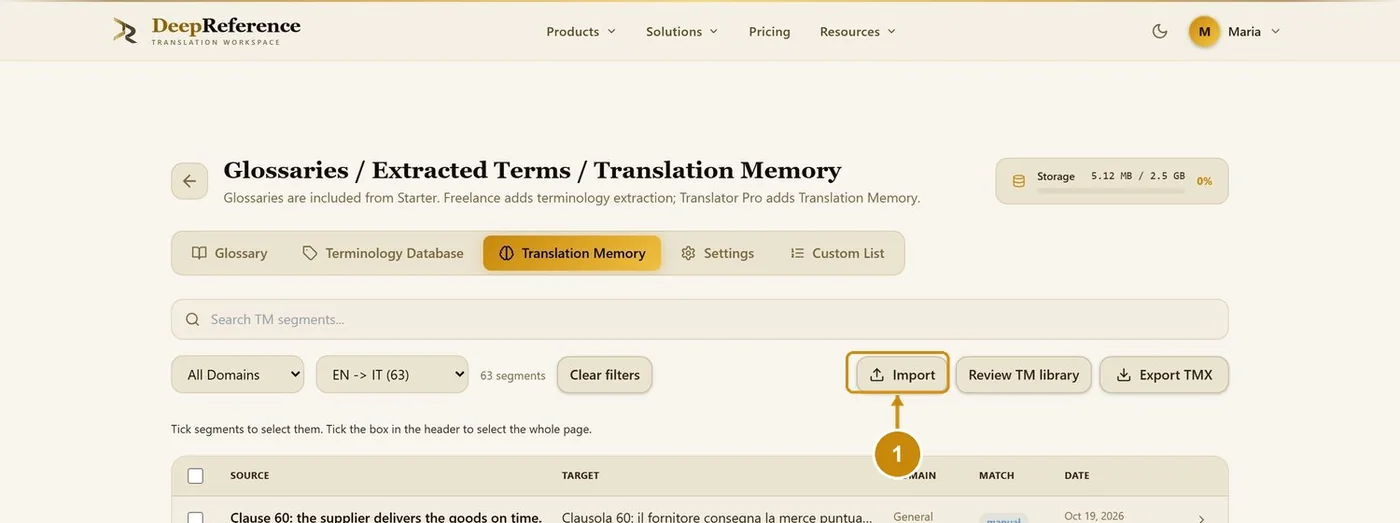
Click Import.
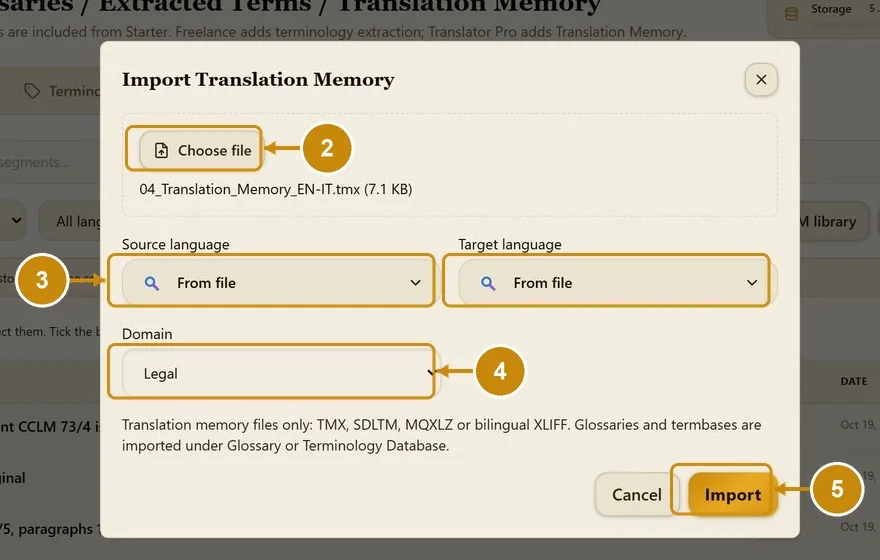
Click Choose file and pick a TMX, SDLTM, MQXLZ or bilingual XLIFF file.
Leave the languages on From file, or pick them if the file has none.
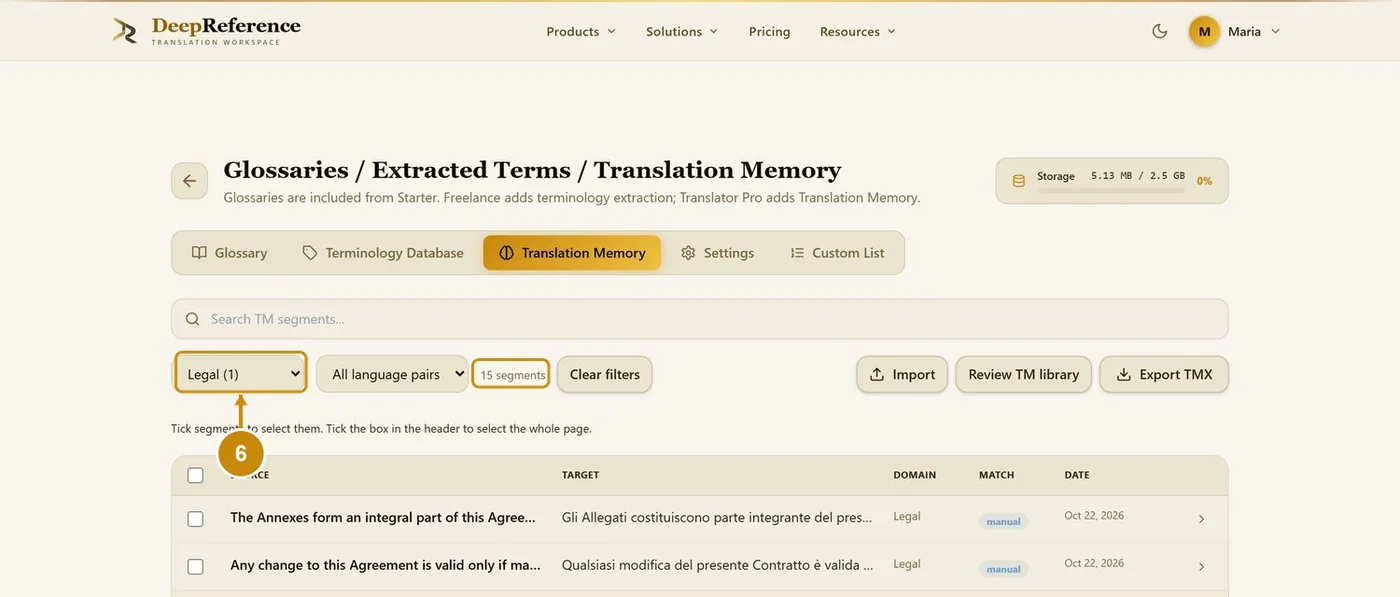
Choose a domain (here Legal).
Click Import.
The imported segments are listed (here 15 segments, filtered to Legal).
4.2 View, edit and delete segments
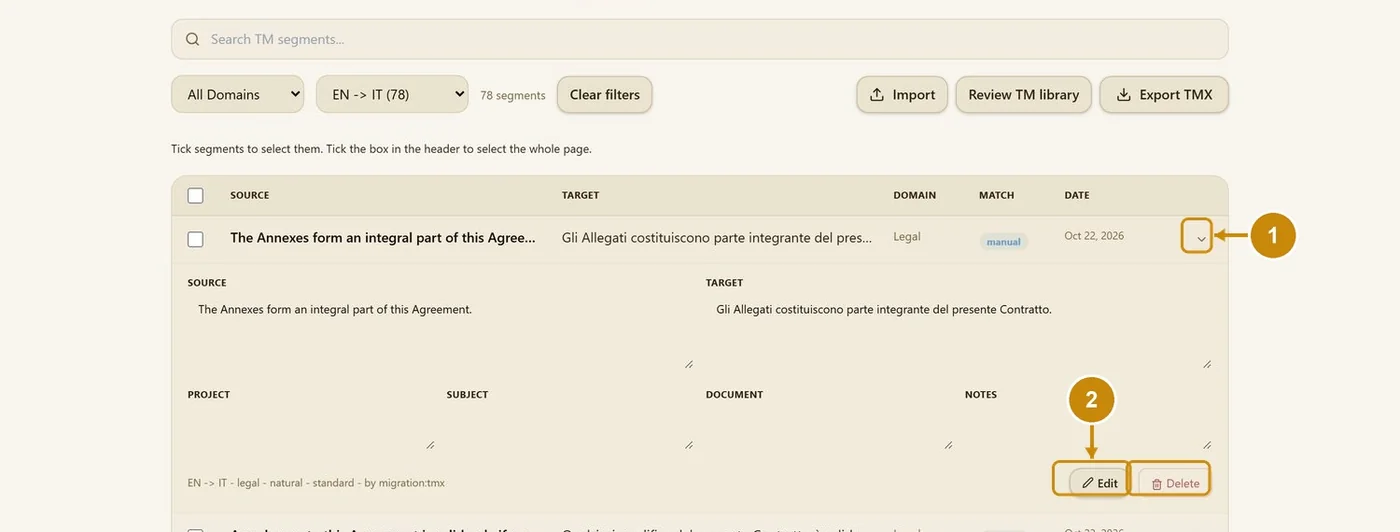
Click the arrow at the end of a row to open the segment.
Click Edit to change it, or Delete to remove it.
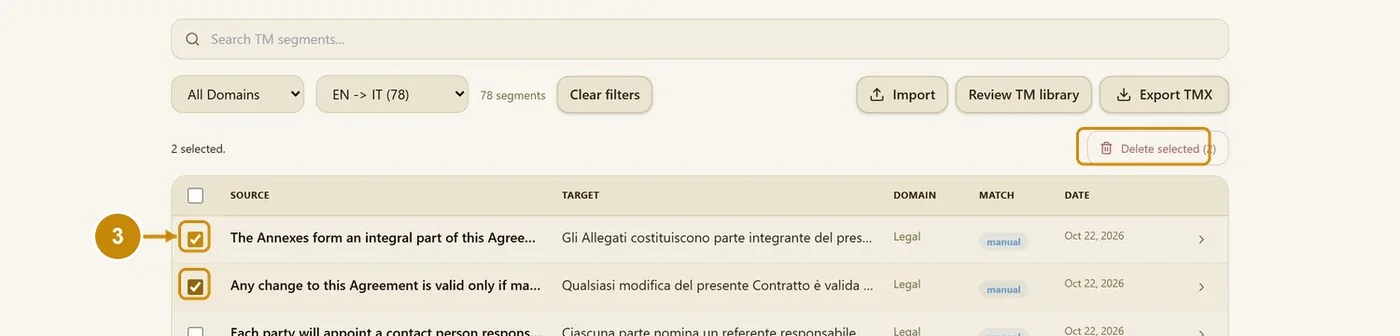
To delete several segments, tick them and click Delete selected.
4.3 Duplicates and alternatives
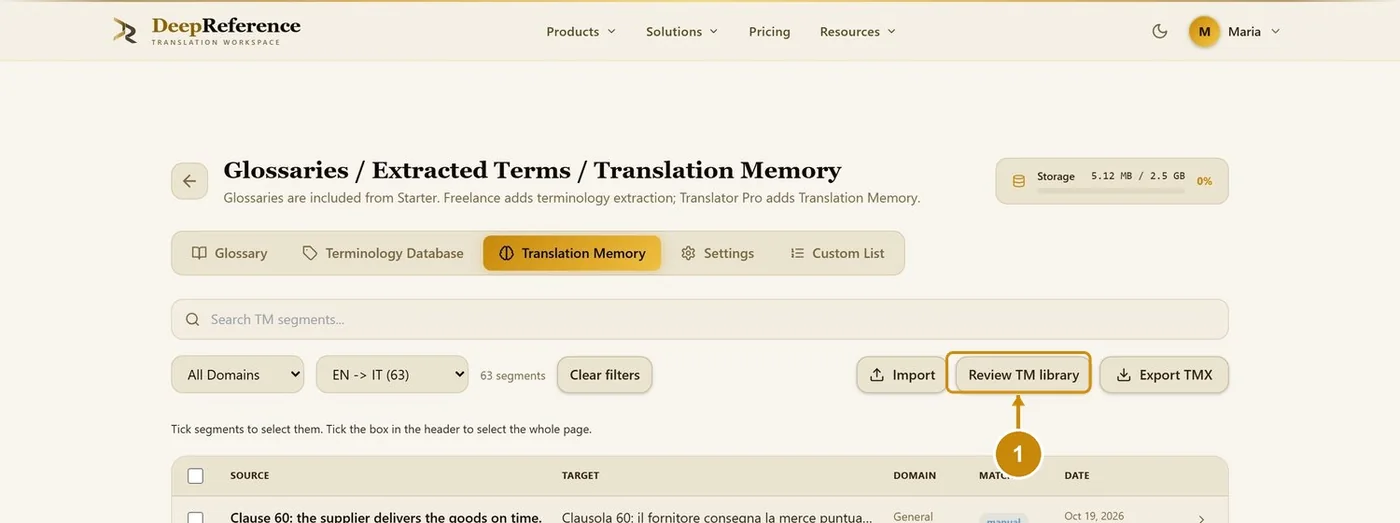
Click Review TM library.
Click Duplicates and alternatives.
Click Find duplicates.
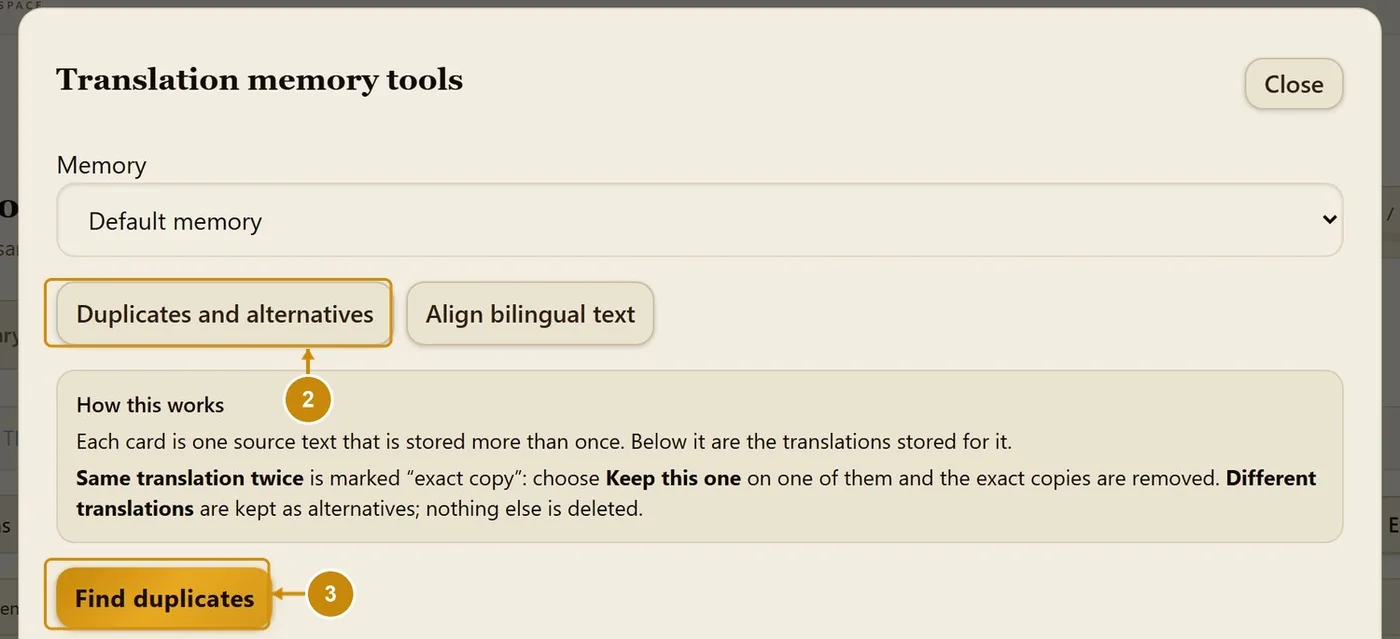
Each card is one source sentence stored more than once. Click Keep this one on the translation you want: exact copies are removed, different translations are kept as alternatives.
4.4 Build a TM from an old translation (Align bilingual text)
In Review TM library, click Align bilingual text.
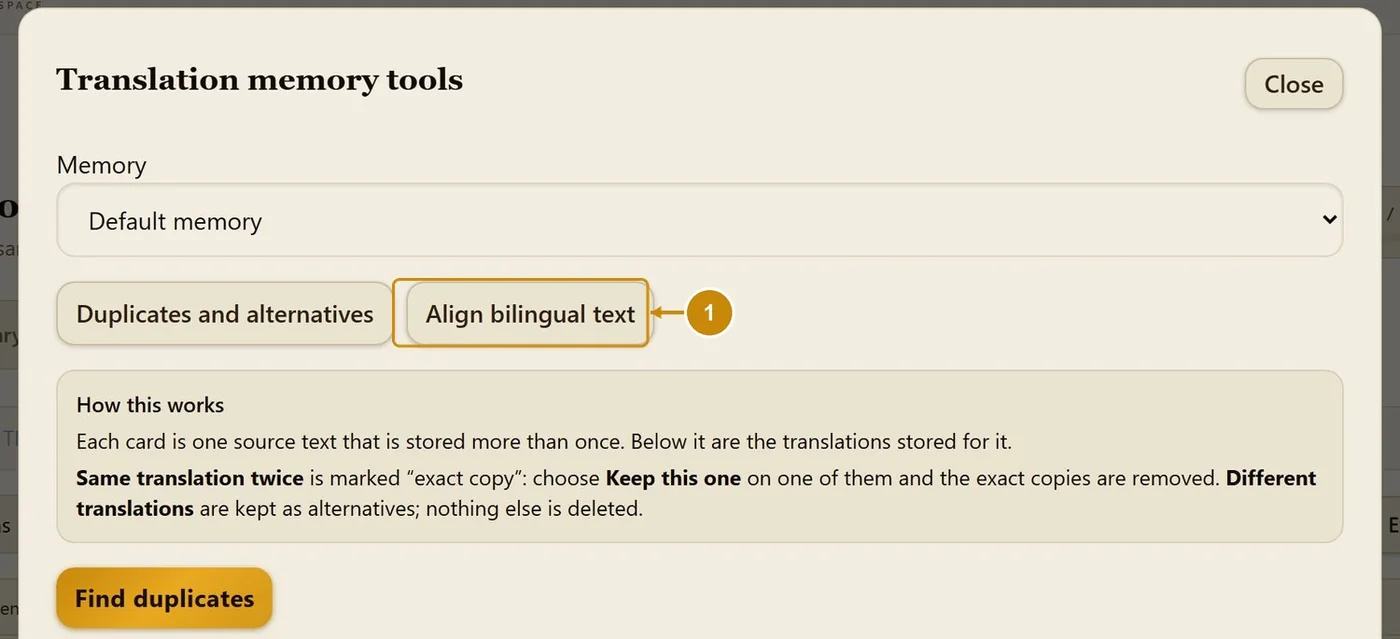
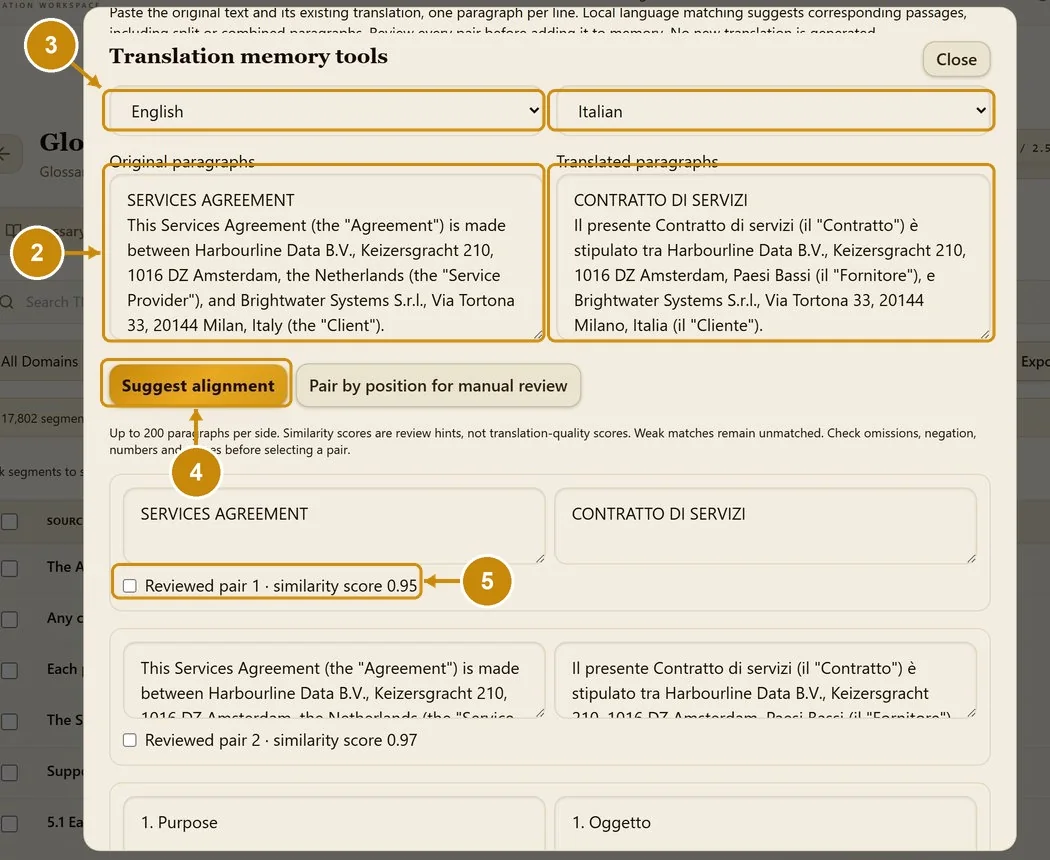
Choose the original and the translated Word file, then click Load document paragraphs (or paste the paragraphs, one per line).
Check the languages.
Click Suggest alignment.
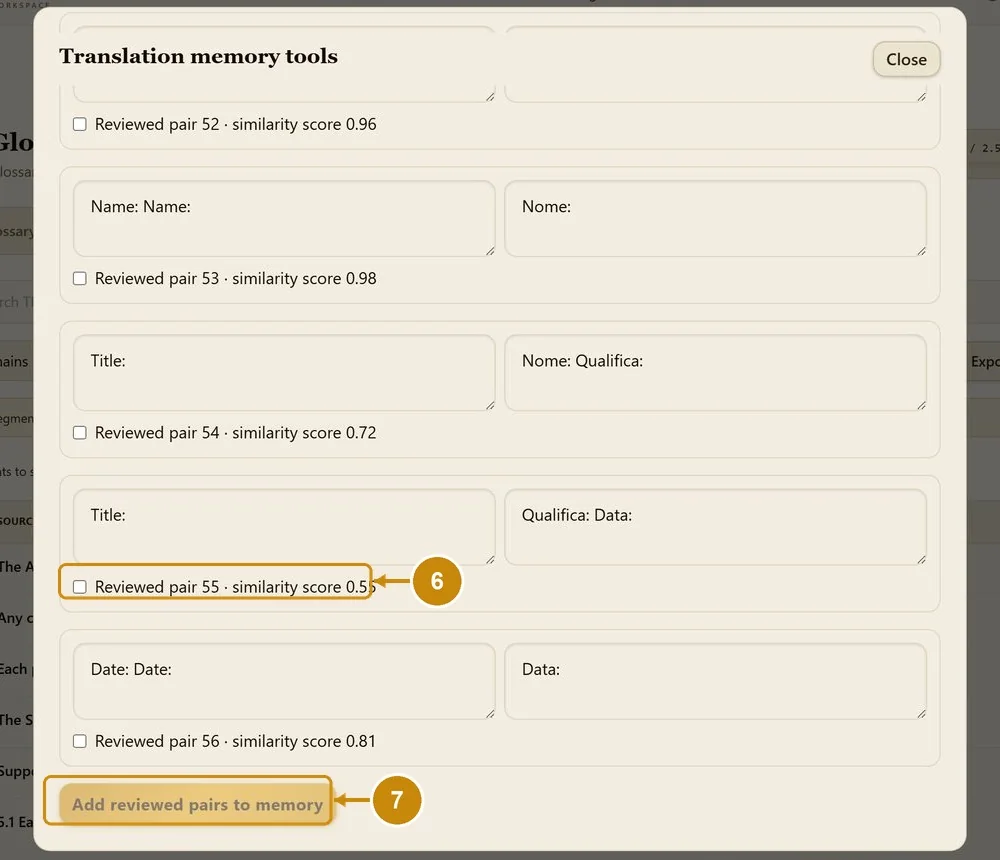
Tick each correct pair.
Leave weak pairs unticked: low scores (here 0.55) are usually wrong.
Click Add reviewed pairs to memory.
4.5 Export
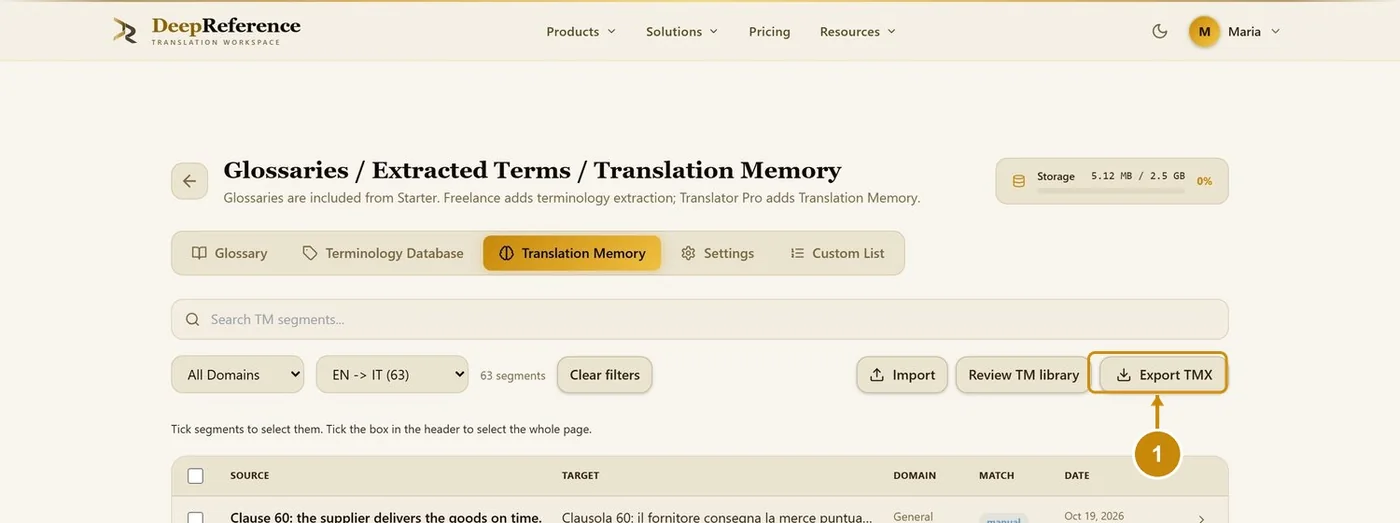
Click Export TMX. The memory (or the current filter) downloads as a TMX file for other CAT tools.