User guide
5. Text translation, tones and glossary
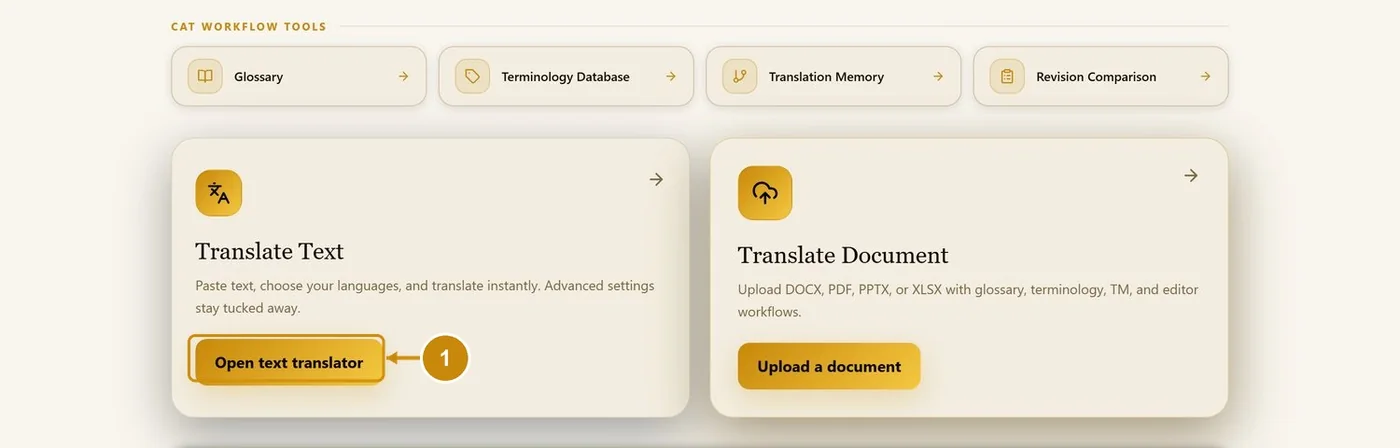
In the workspace, click Open text translator.
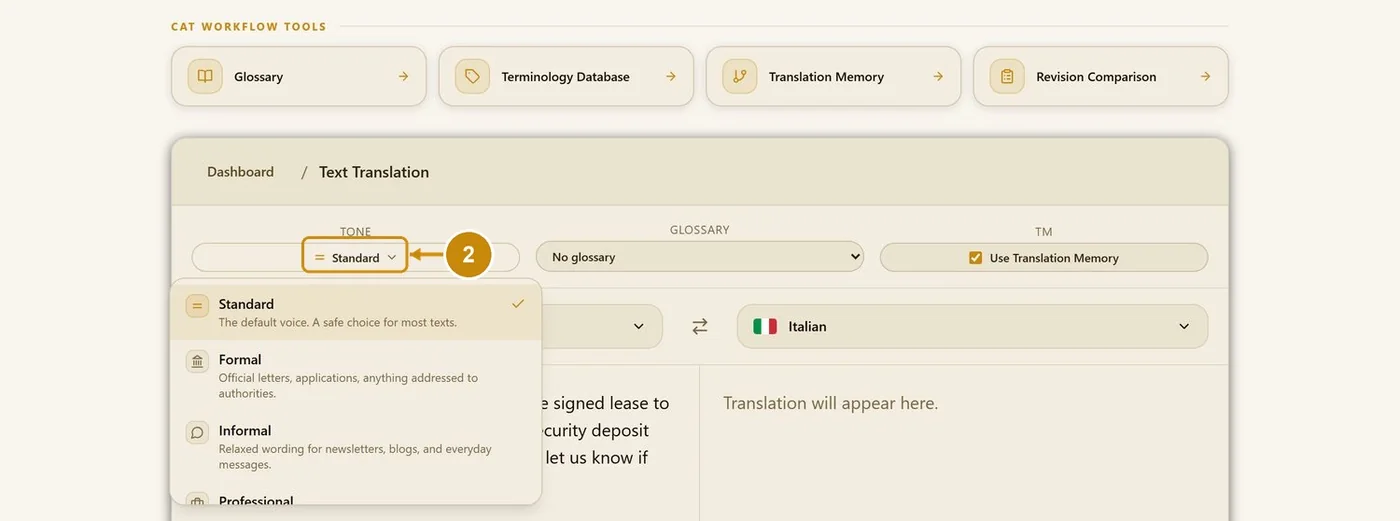
Choose the tone. The menu describes each tone.
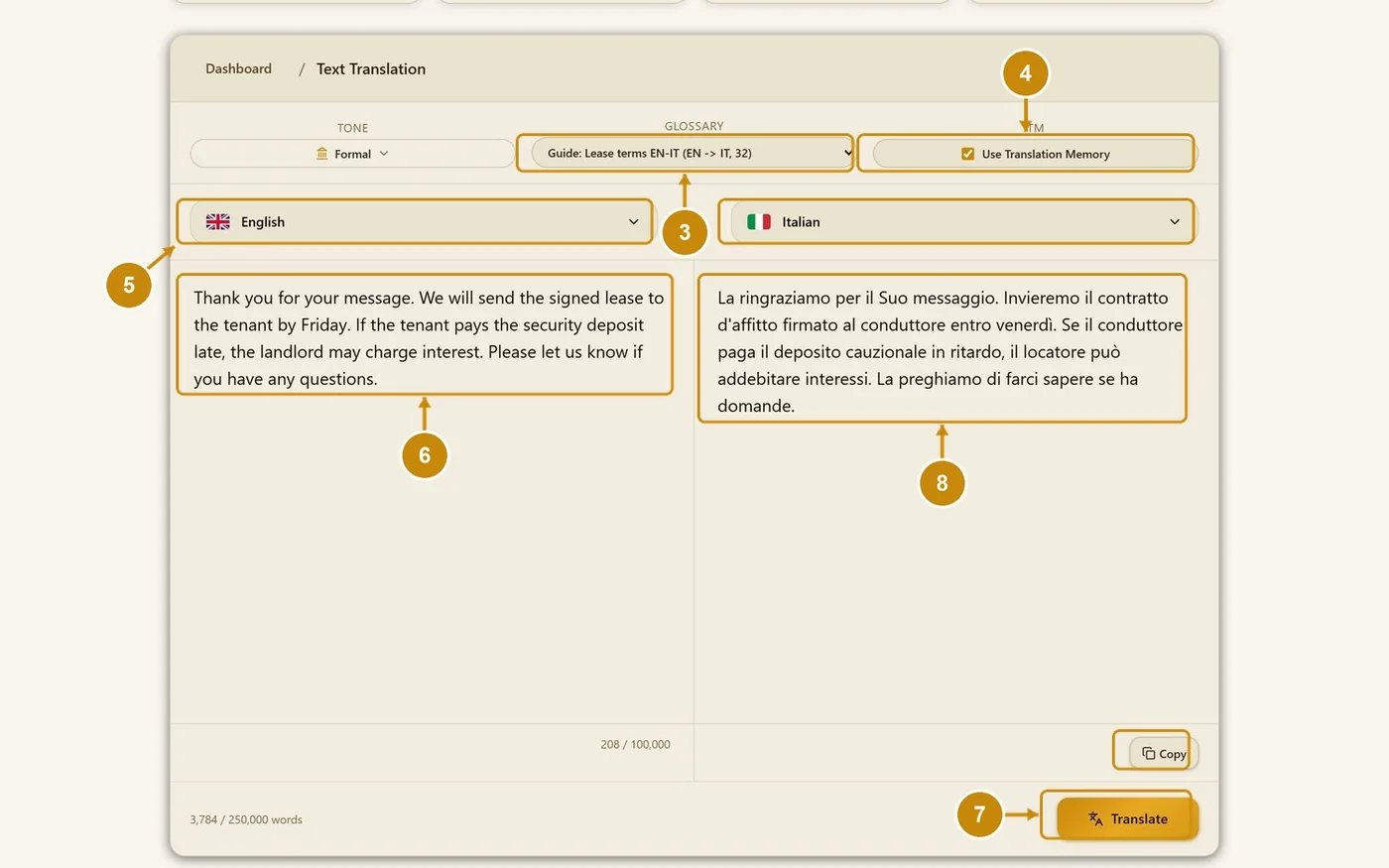
Choose a glossary (optional).
Keep Use Translation Memory ticked.
Choose the source language and the target language.
Paste the text.
Click Translate.
The translation appears on the right. Click Copy to take it.
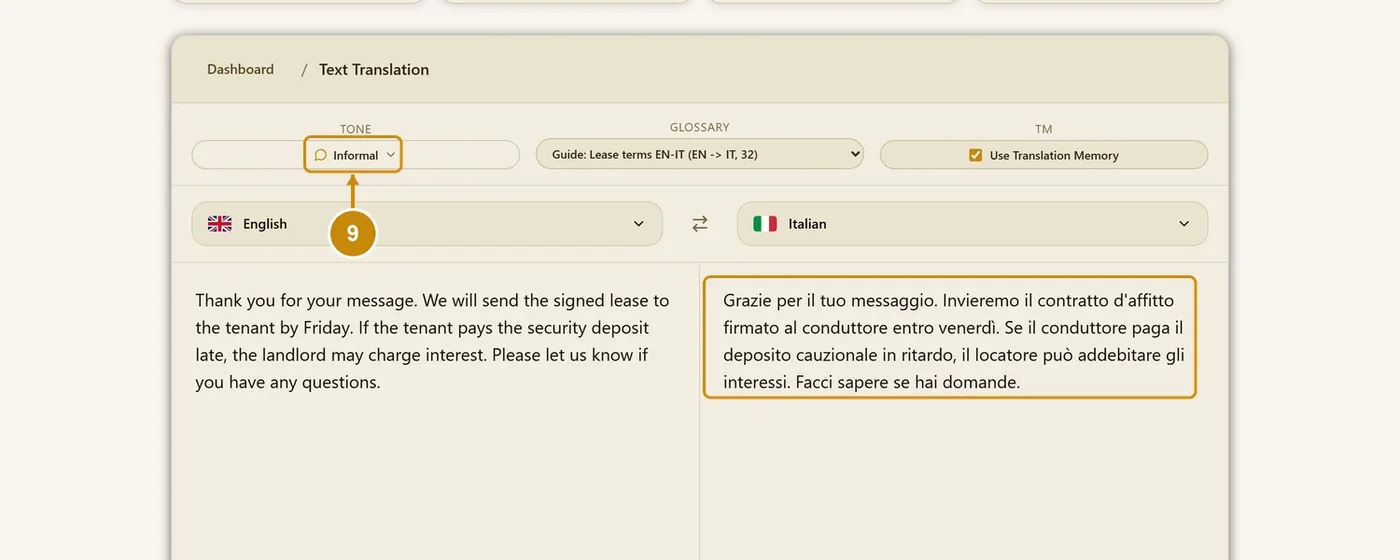
Change the tone (here Informal) and click Translate again. The glossary terms stay the same.
Ten tones are available: Standard, Formal, Informal, Professional, Diplomatic, Simplified, Technical, Casual, Persuasive and Concise.
5.1 Which tone to choose
The tone sets the voice of the translation, never its content. Choose it for the reader:
- Standard: the default, neutral voice. Right for most documents.
- Formal: contracts, court filings, official letters, policy documents.
- Professional: business correspondence, reports, proposals, customer notices.
- Diplomatic: customer support replies, complaints, sensitive messages.
- Technical: manuals, specifications, software documentation.
- Simplified: patient information, guidance for citizens, readers who are not native speakers.
- Persuasive: campaign copy, product pages, landing pages.
- Concise: internal documentation, summaries, interface text.
- Informal: newsletters, blog posts and messages to a familiar audience.
- Casual: social posts and chat messages.
The same tones are offered in the first step of document translation. In the editors you can retranslate a single segment with another tone to compare.