User guide
11. Business and Enterprise teams
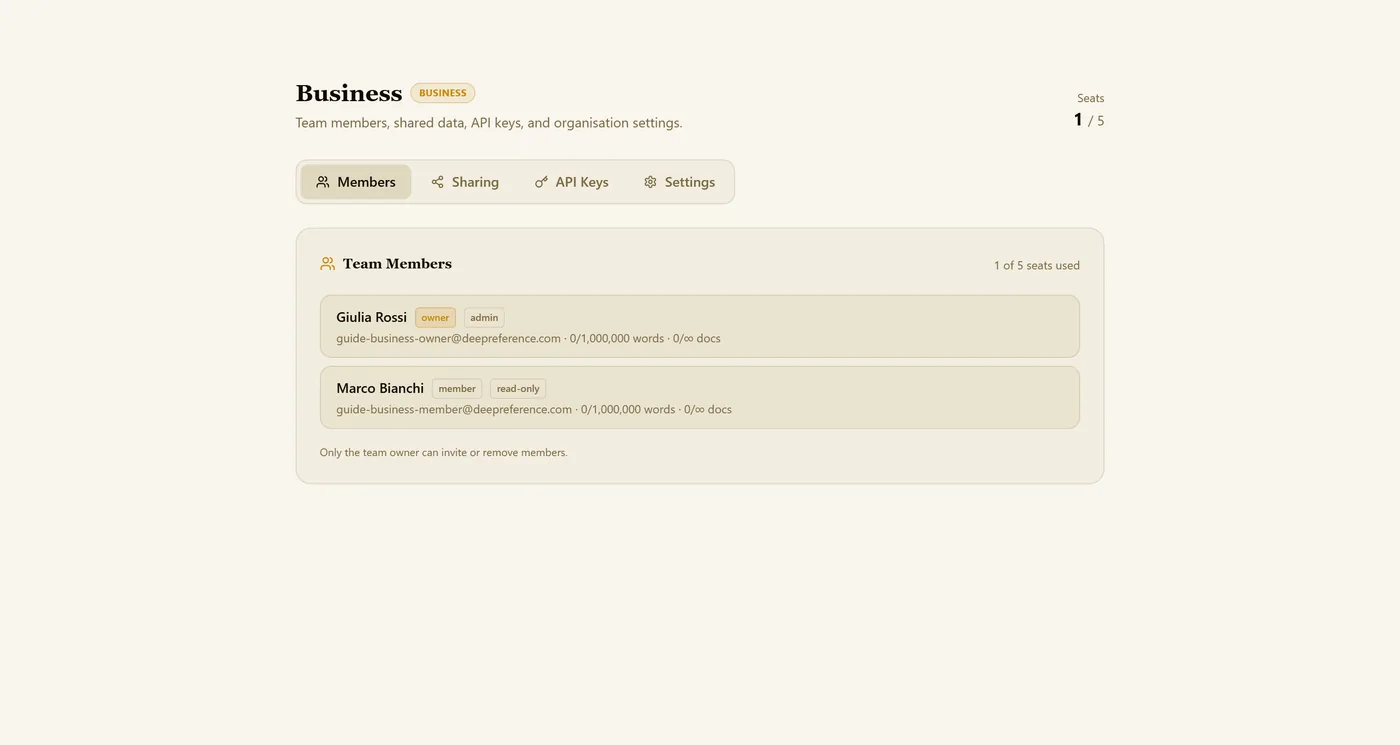
Working with colleagues? Business and Enterprise plans add a team workspace: invite people, share translation memories and glossaries, create API keys and look after your organisation. Open it from your account menu: the item is called Business or Enterprise, after your plan.
11.1 Invite your team
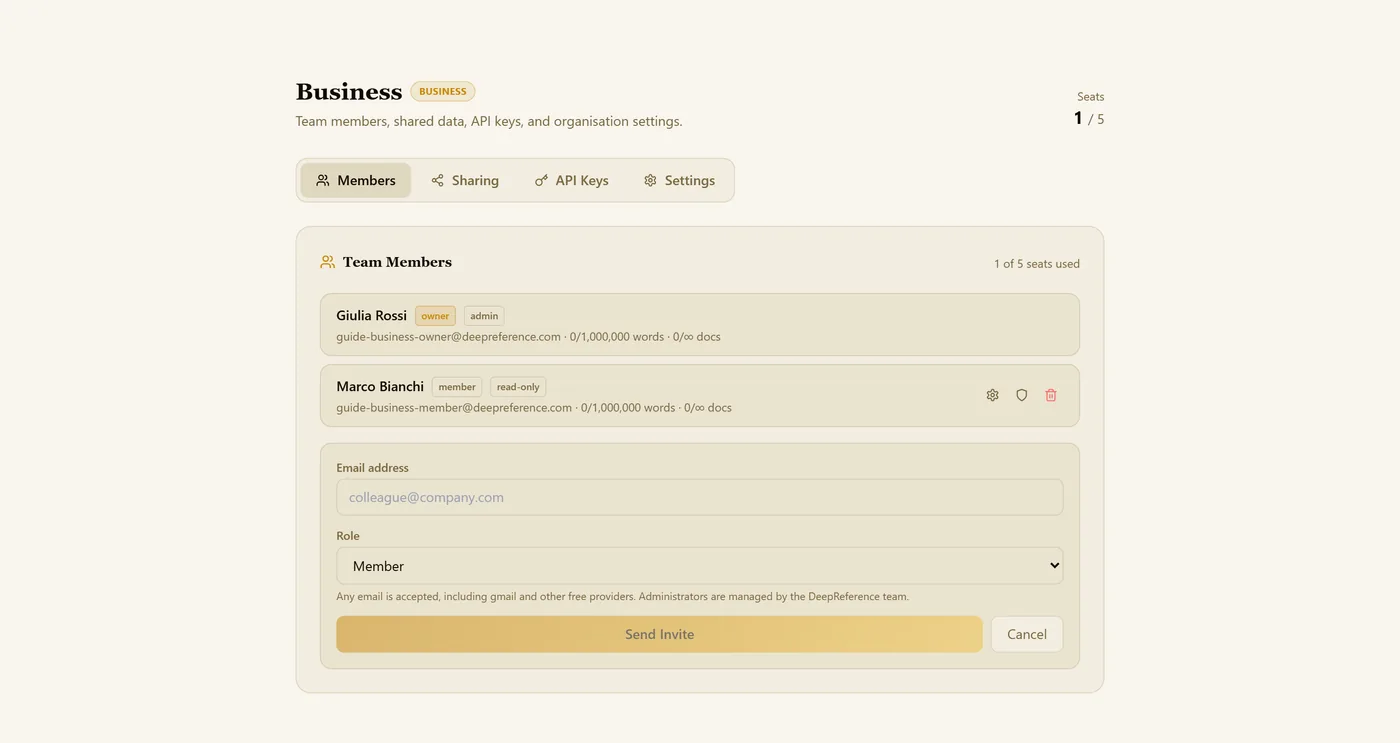
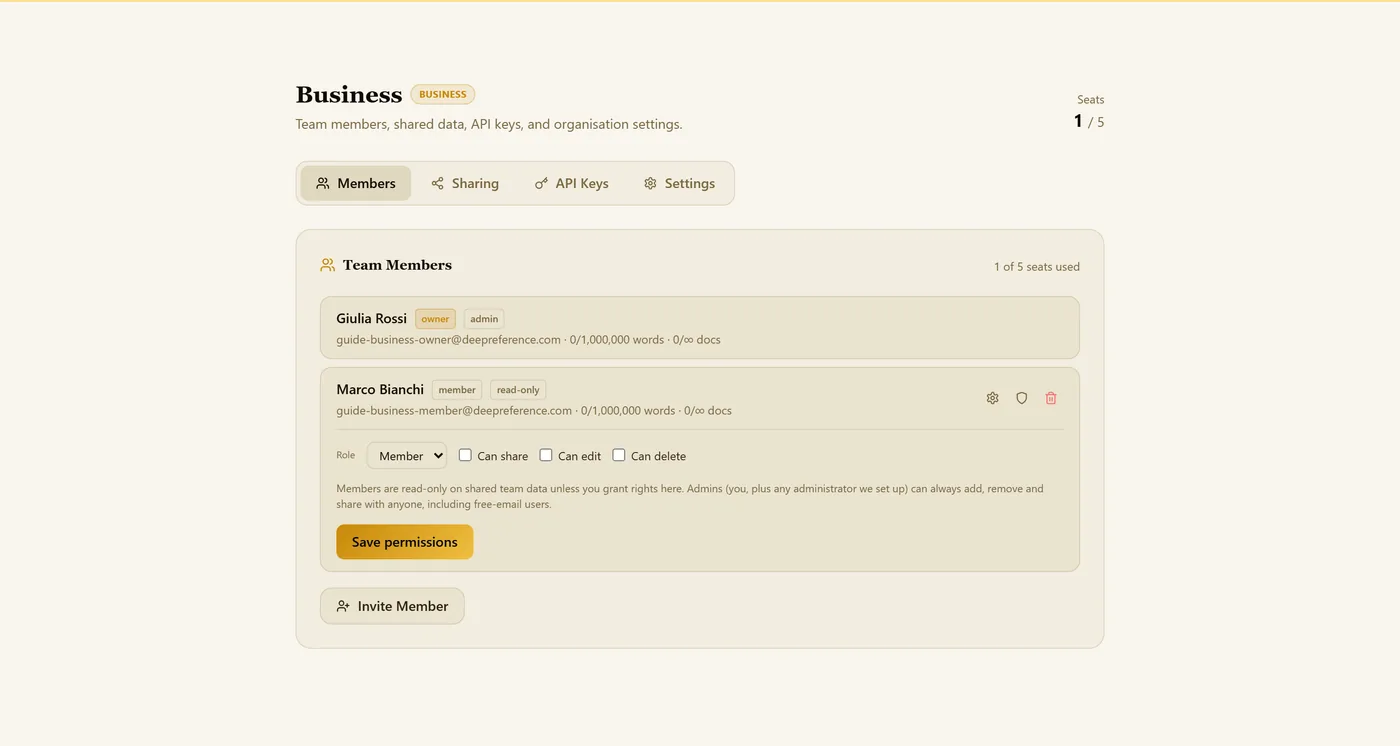
Open Members and click Invite Member.
Type your colleague’s email address. Any address works, Gmail included.
Pick a role: Member works with the team’s shared resources, Viewer can only look.
Click Send Invite. They join as soon as they sign in, or sign up, with that address.
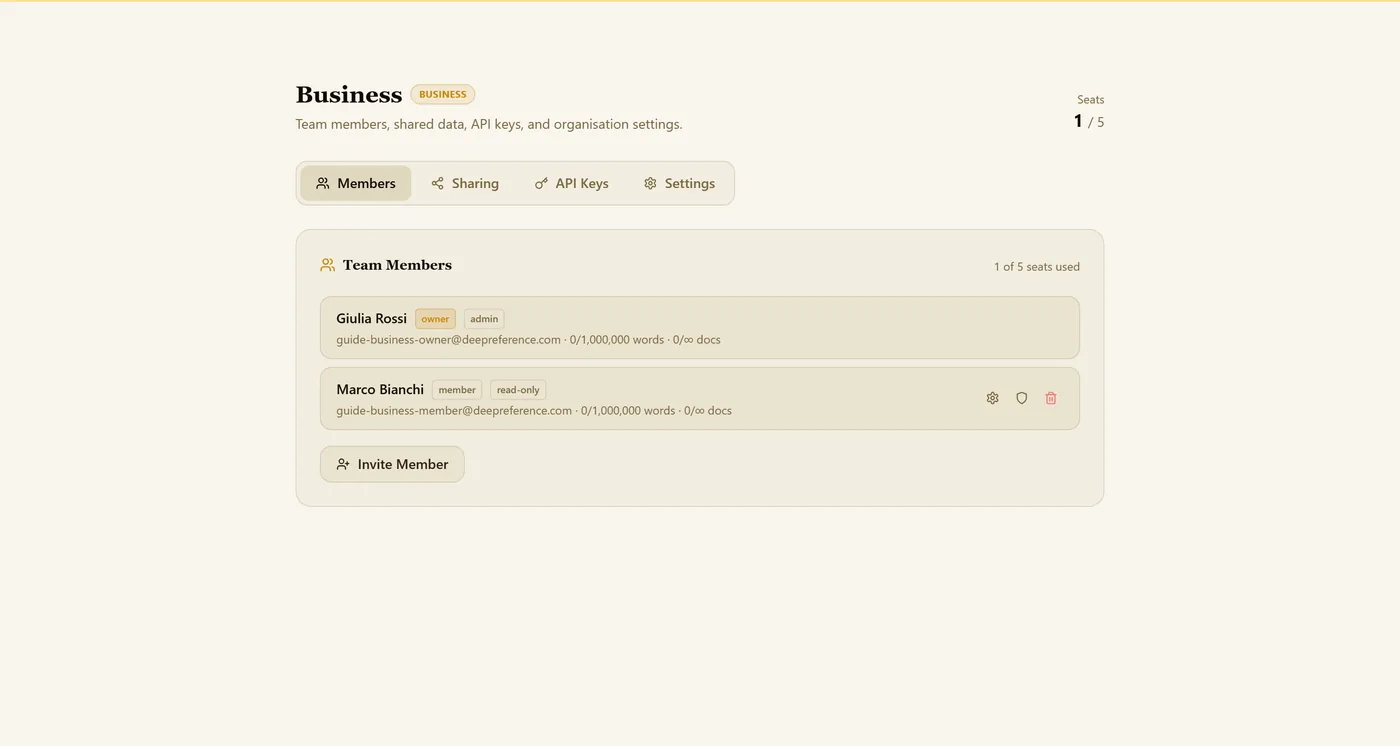
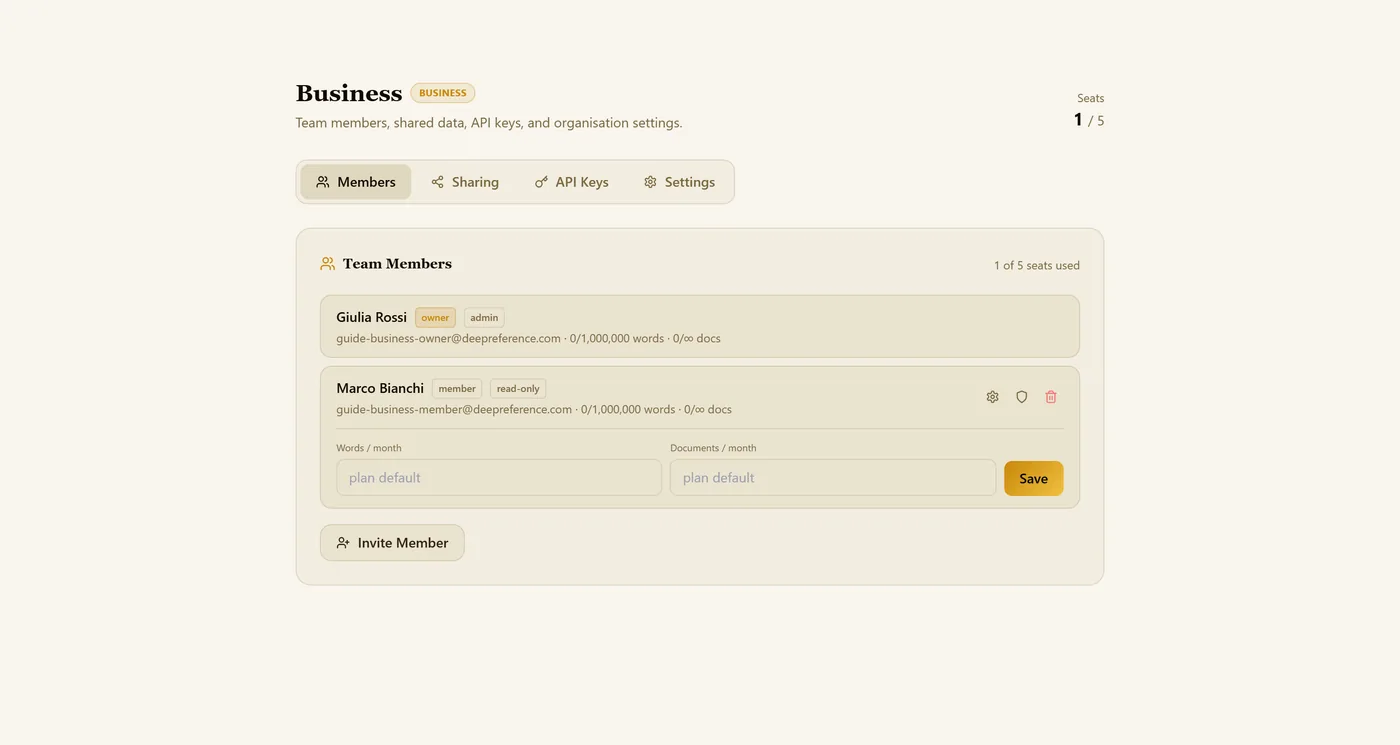
Each member has three small buttons. The gear sets a monthly word and document limit for that person. The shield sets their role and rights: can share, can edit, can delete. The bin removes them from the team.
11.2 Share memories and glossaries
Sharing is where the team’s libraries live. You can keep several named translation memories and termbases (for example one per client) and decide exactly what each colleague can reuse.
Under Translation Memories or Termbases, type a name and click Add to create a named library.
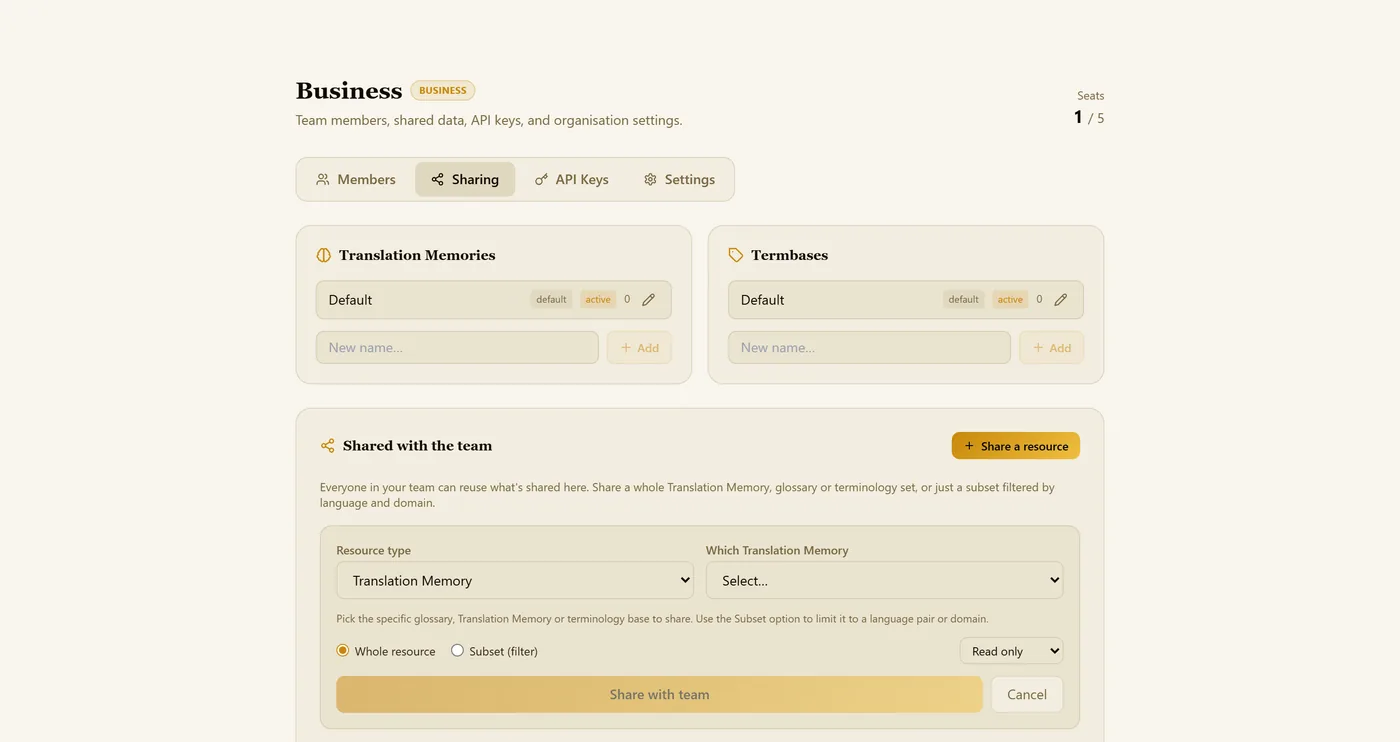
Click Share a resource.
Choose the type (translation memory, glossary or terminology) and which one.
Share all of it or only a subset filtered by language and domain, and choose read-only or editing.
Click Share with team.
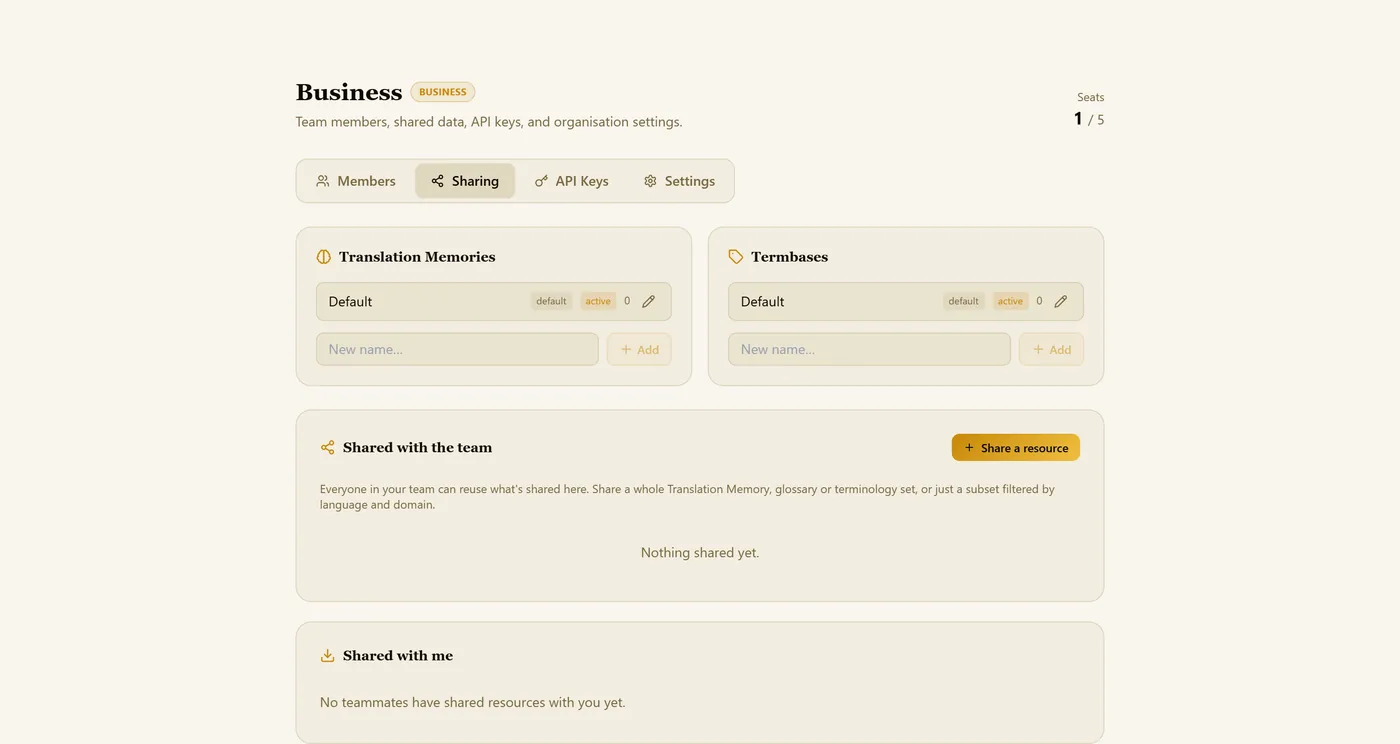
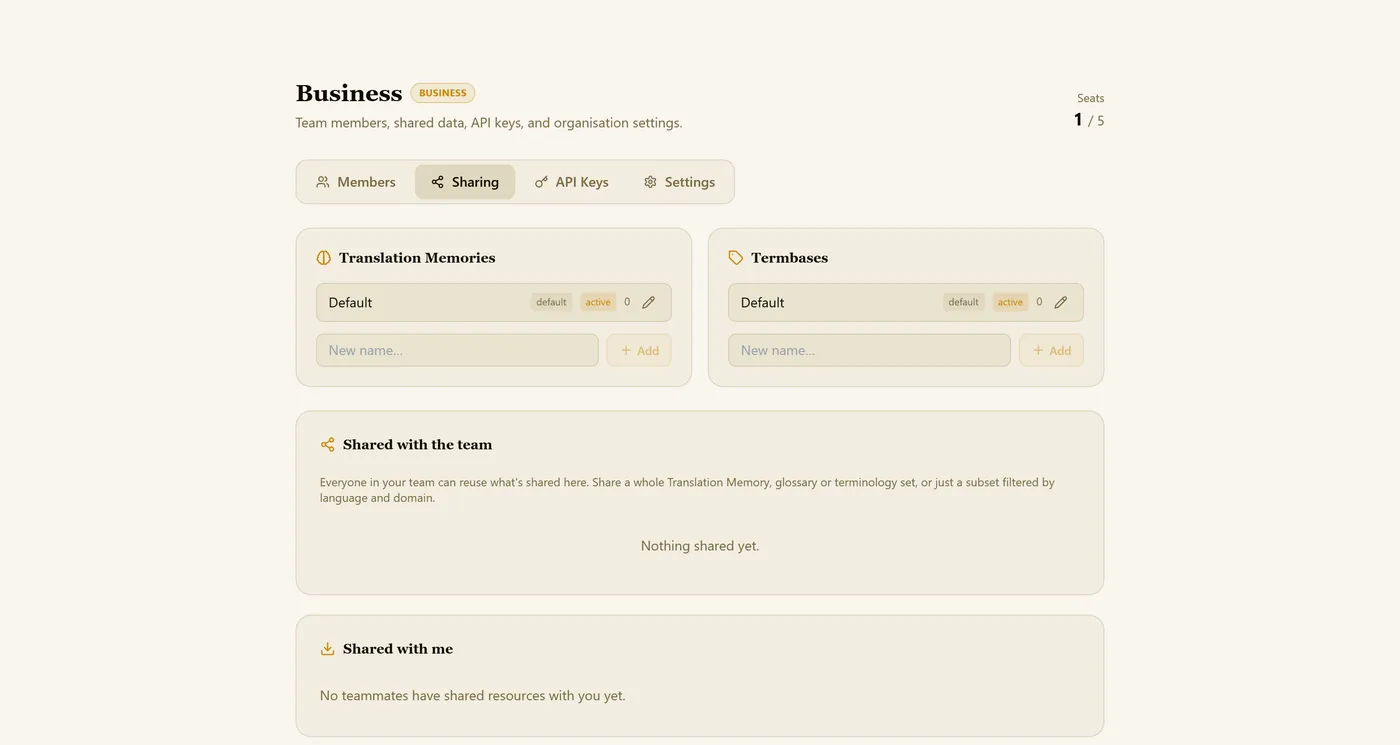
Colleagues find everything under Shared with me, and the editors use it straight away.
11.3 API keys
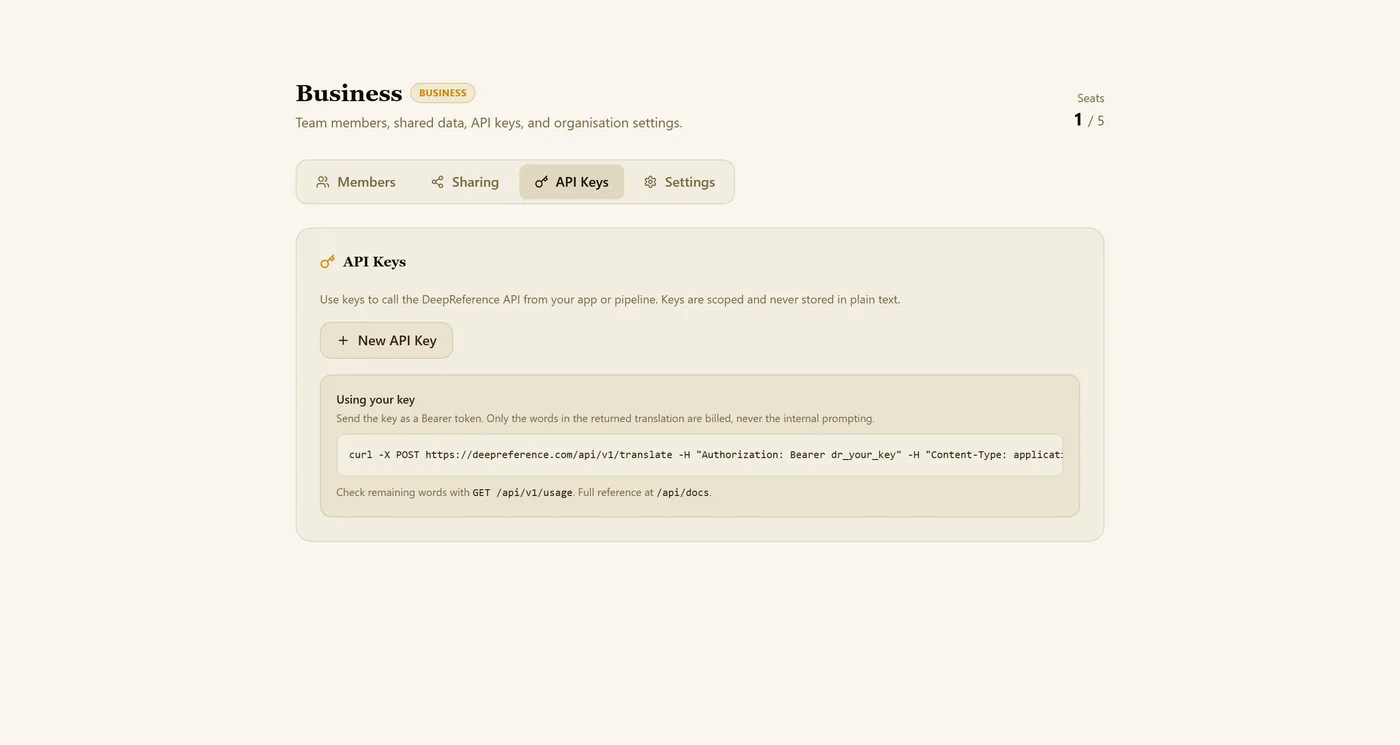
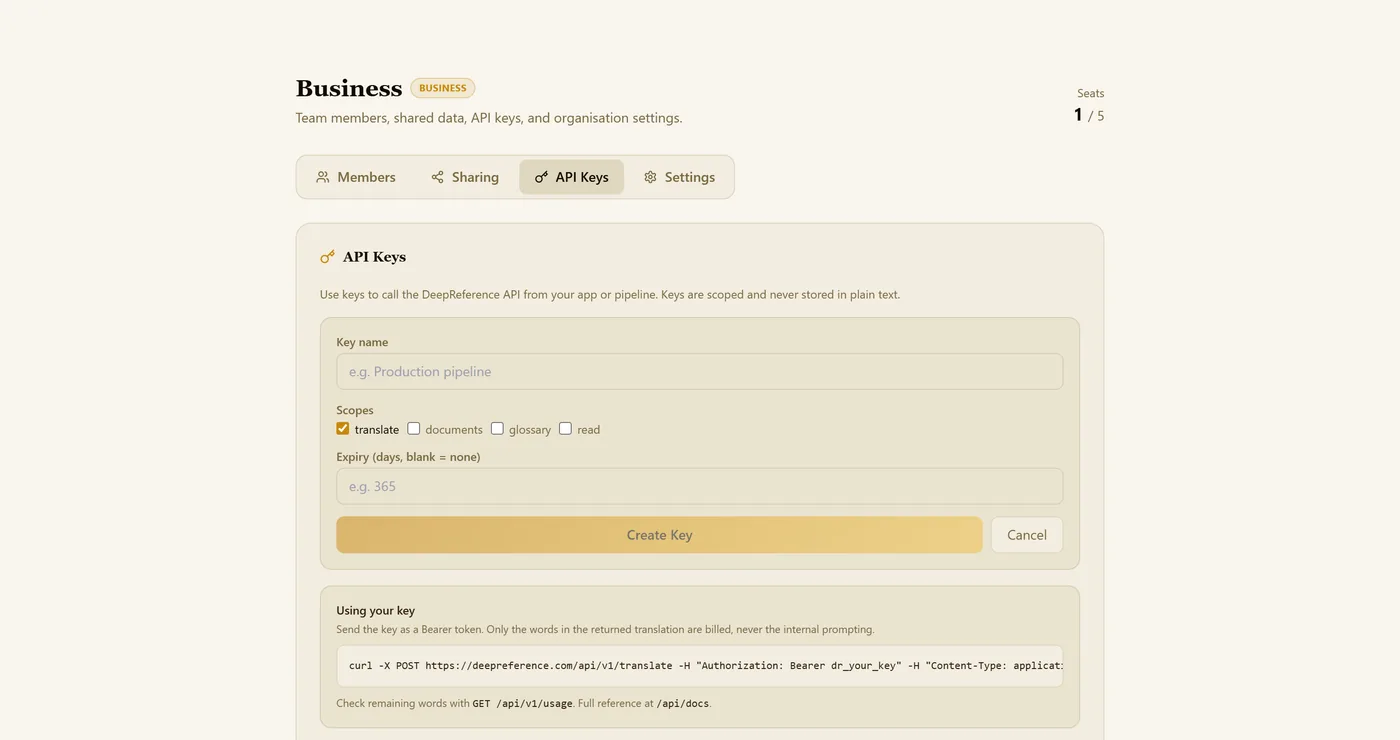
Open API Keys and click New API Key.
Name the key, tick the scopes it needs (translate, documents, glossary, read) and add an expiry if you like.
Click Create Key and copy it right away. It is shown only once.
Send the key as a Bearer token to https://deepreference.com/api/v1/translate. GET /api/v1/usage shows the words left. Only the words of the returned translation count.
11.4 Organisation settings
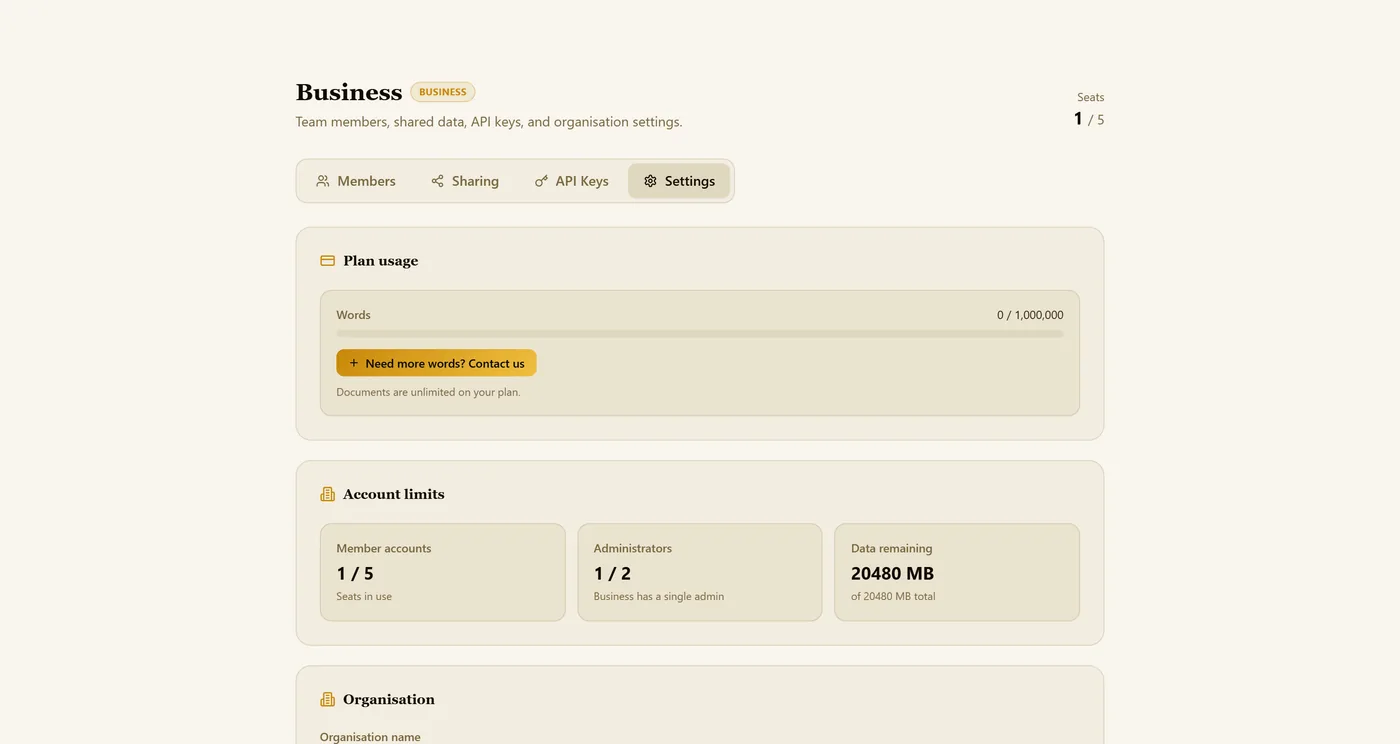
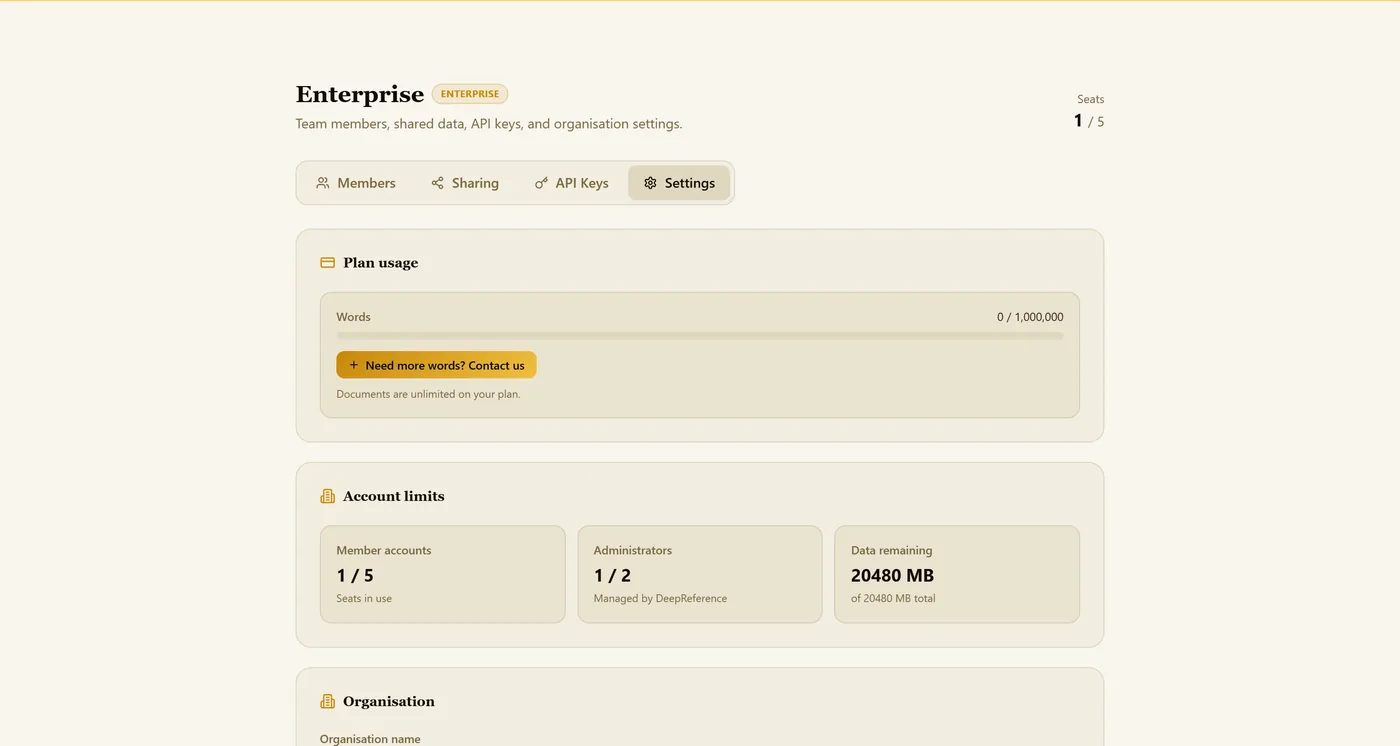
Settings shows this month’s shared words, your account limits (member seats, administrators, storage) and the organisation details: name, the admin name shown on invites, data region and internal security notes. Click Save Settings after a change.
- Business: up to 5 member seats, one administrator, 1,000,000 shared words a month and unlimited documents.
- Enterprise: a custom number of seats, administrators set up by DeepReference, and SSO (SAML or OIDC) on request at [email protected].
11.5 What members see
Members open the same page. They see the team, the shared libraries and their own word allowance; only the owner invites or removes people.