User guide
2. Glossaries
A glossary tells the model which translation to use for a term.
In the workspace, click Glossary.
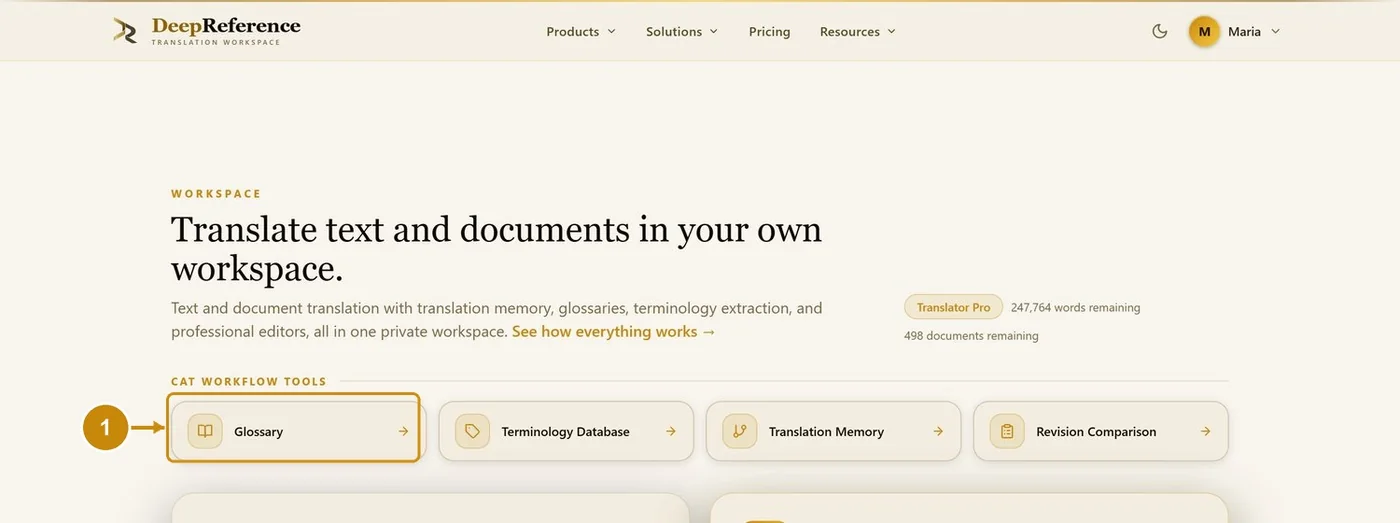
The Glossary tab opens with one row per glossary.
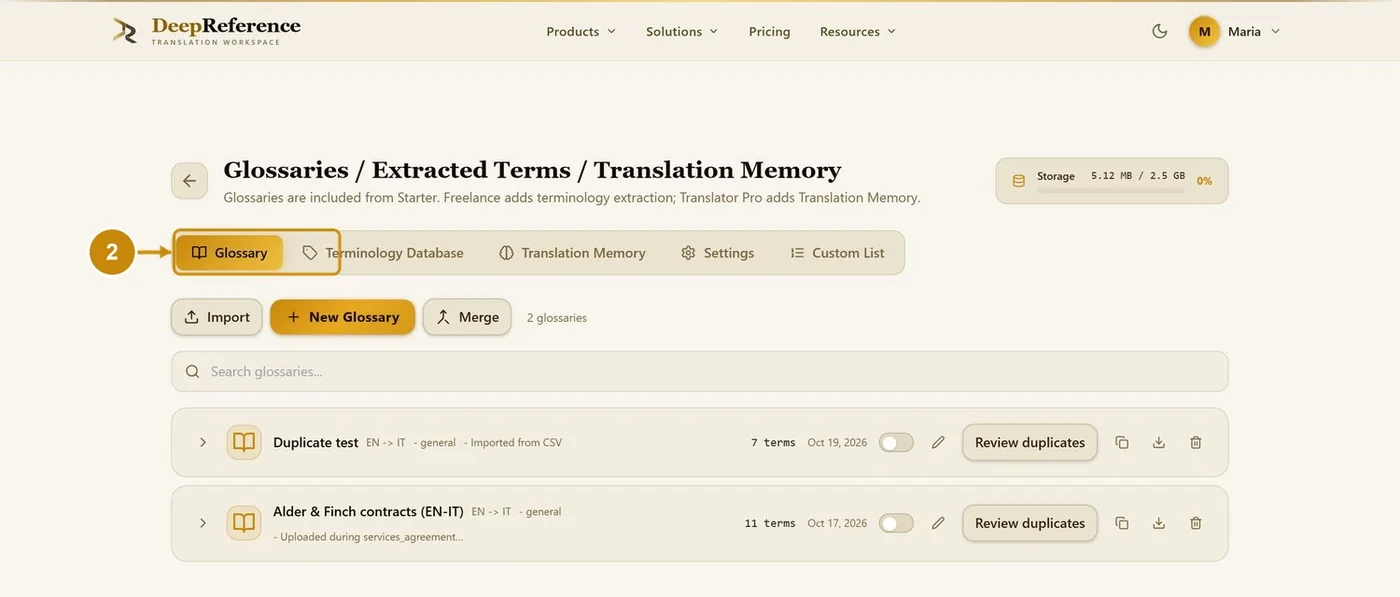
2.1 Open a glossary
Click the arrow at the left of the glossary row.
The terms of the glossary open below the row.
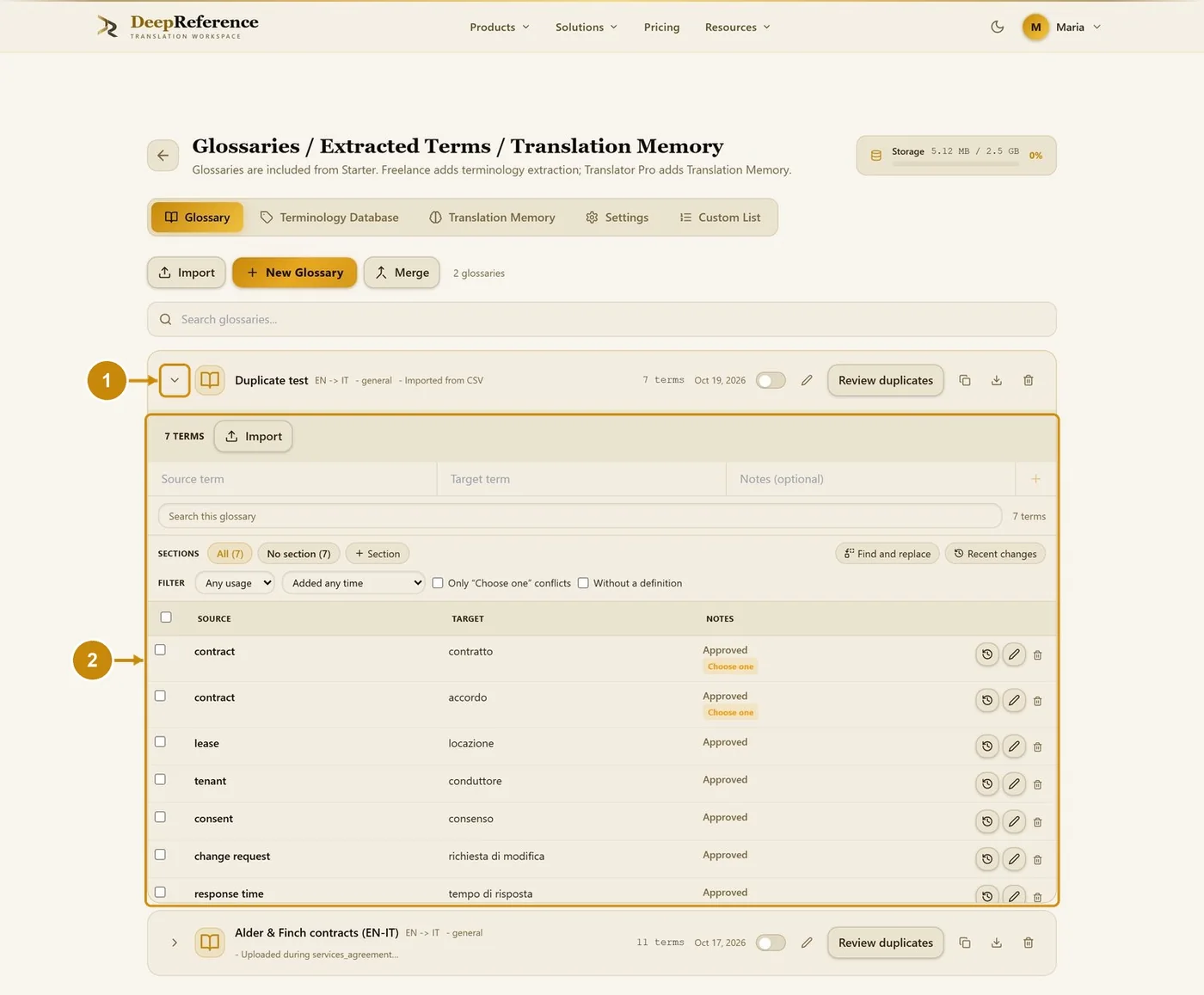
2.2 The buttons on a glossary row
On/off switch: makes this glossary the active one.
Pencil: rename the glossary.
Review duplicates: terms stored more than once.
Duplicate glossary: makes a full copy.
Export CSV: downloads the glossary.
Delete: removes the glossary.

2.3 Create a glossary
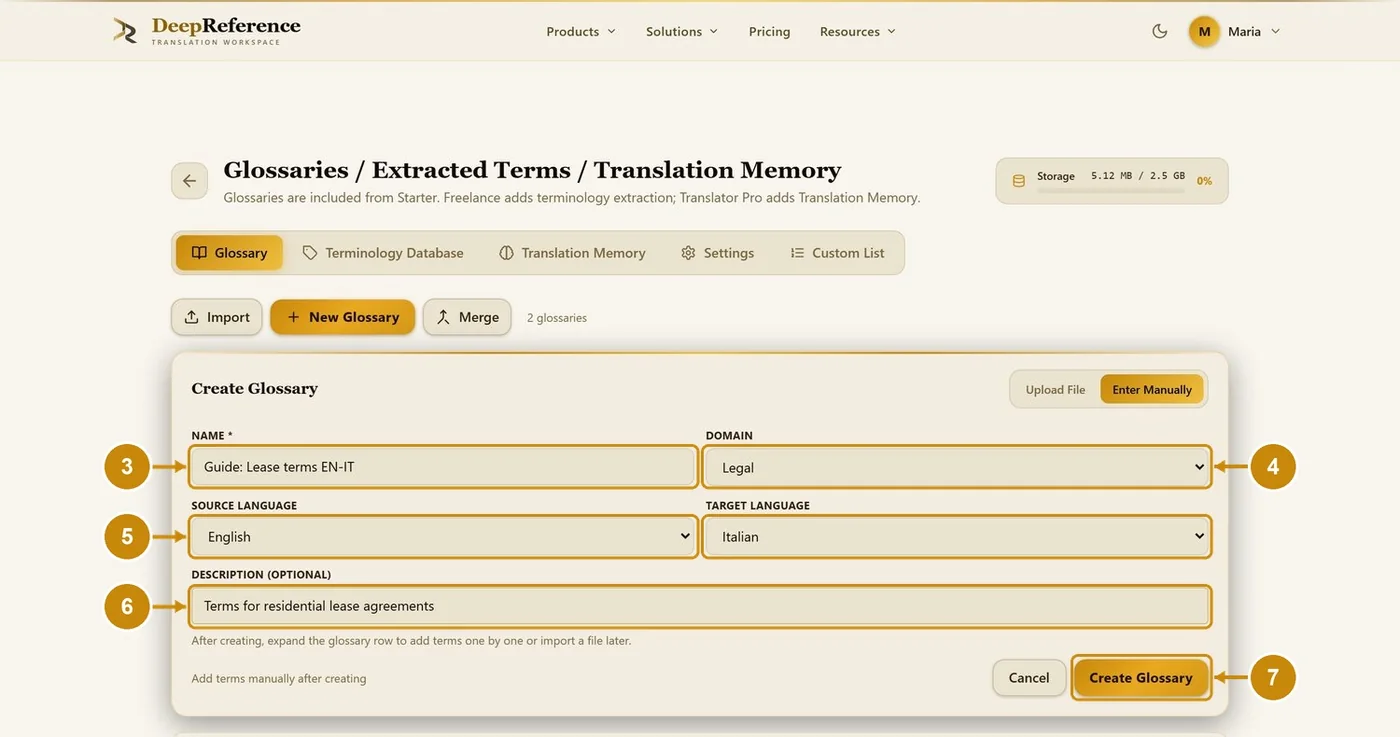
Click New Glossary.
Click Enter Manually. (Upload File creates the glossary from a CSV or XLSX file.)
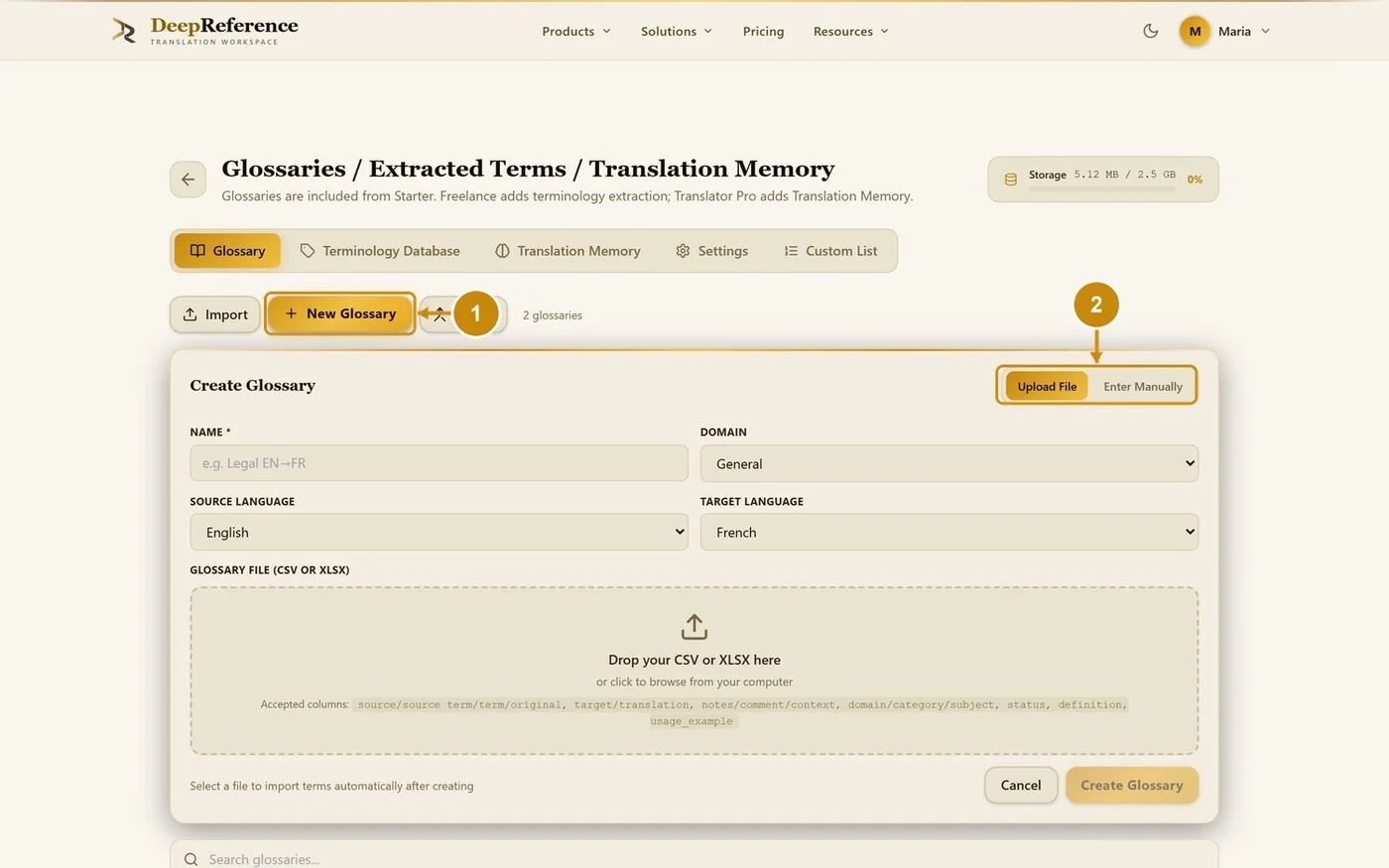
Type a name.
Choose the domain.
Choose the source language and the target language.
Type a description (optional).
Click Create Glossary.
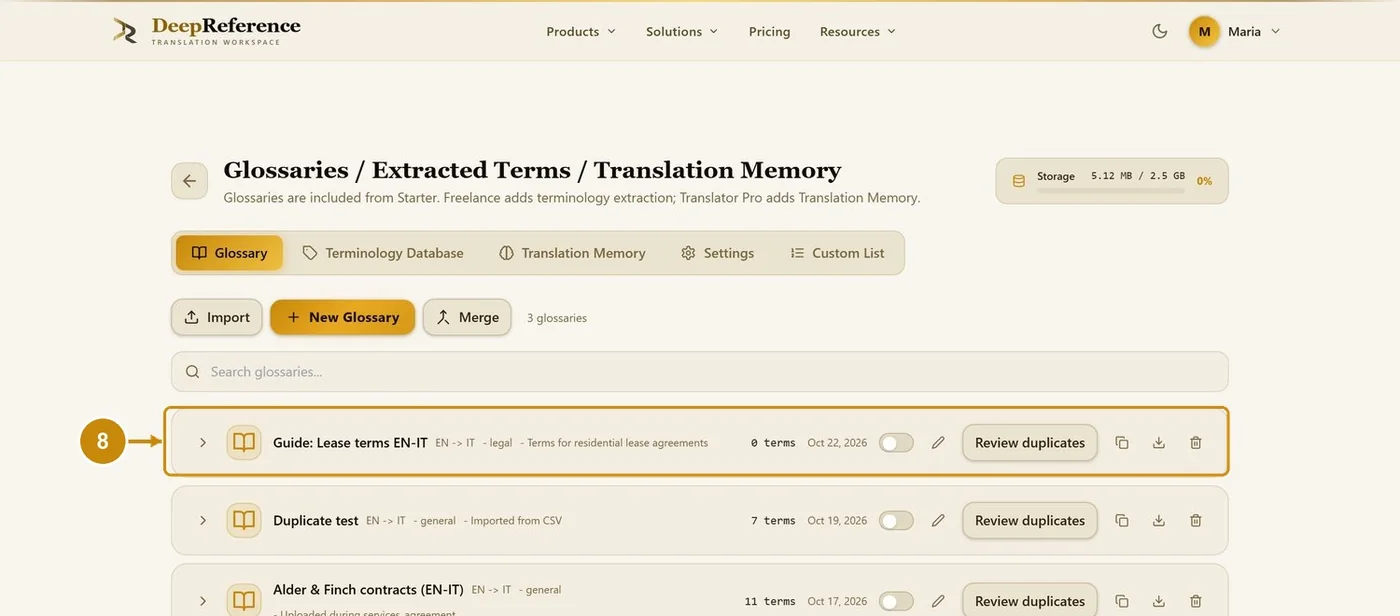
The new, empty glossary appears in the list.
2.4 Add terms
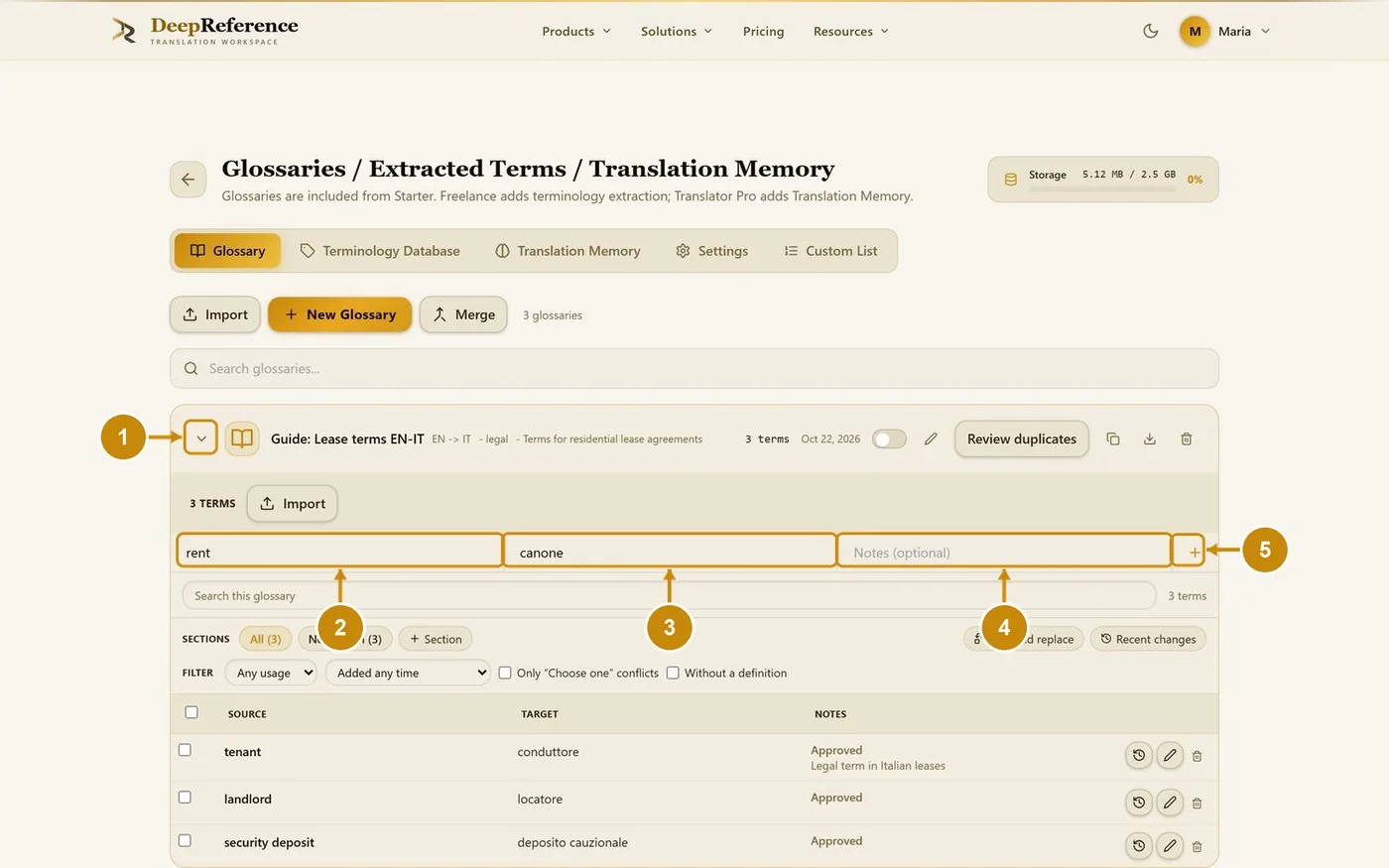
Click the arrow of the glossary to open it.
Type the source term.
Type the target term.
Type a note (optional).
Press Enter or click +.
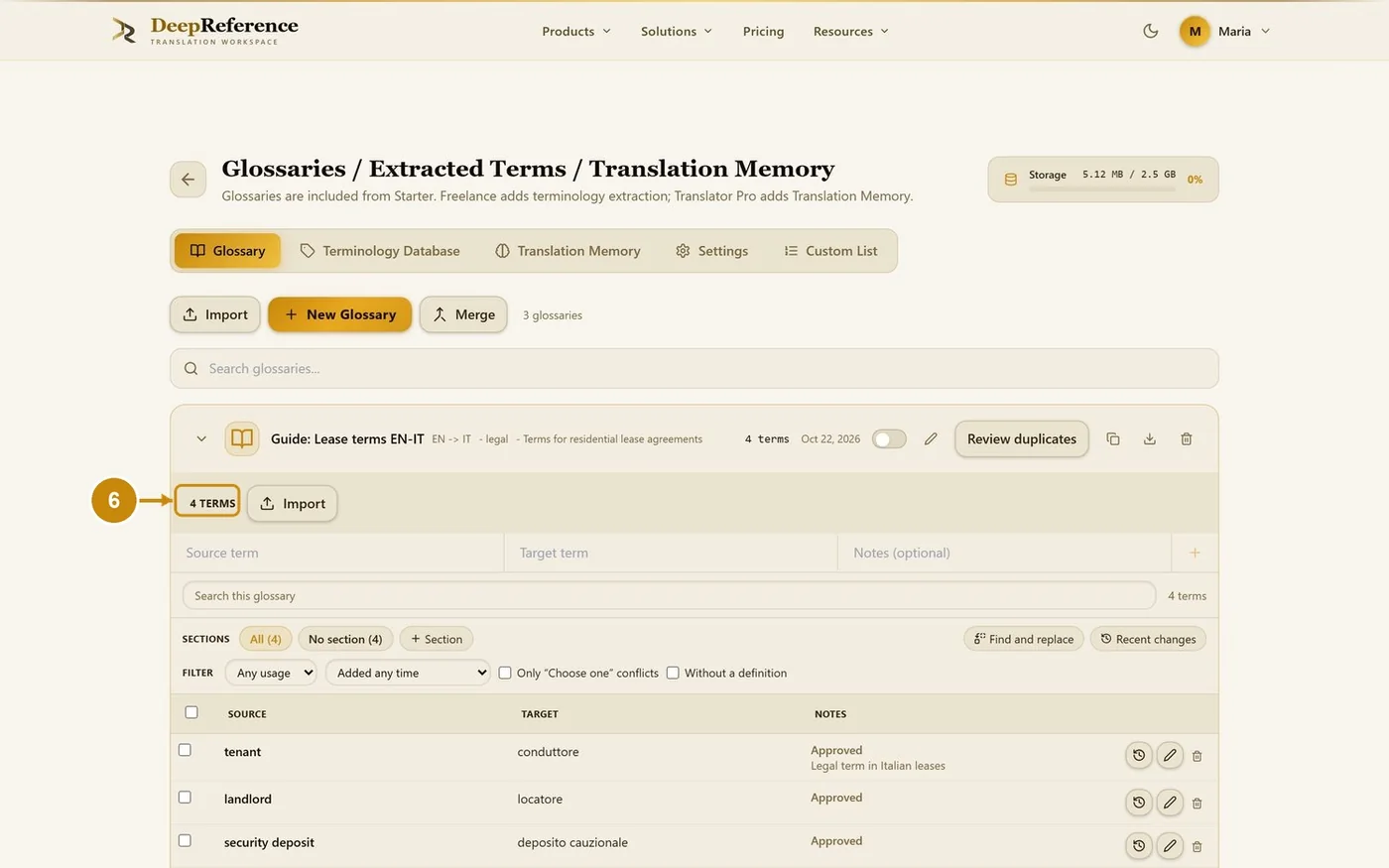
The term is added as Approved and the term count goes up (here 4 terms).
2.5 Edit a term and choose its usage
Usage tells the model how to treat a translation:
- Approved: the model must use this translation.
- Alternative: kept for your reference only; it is never sent to the model.
- Forbidden: the model is told not to use this translation, and QA flags it.
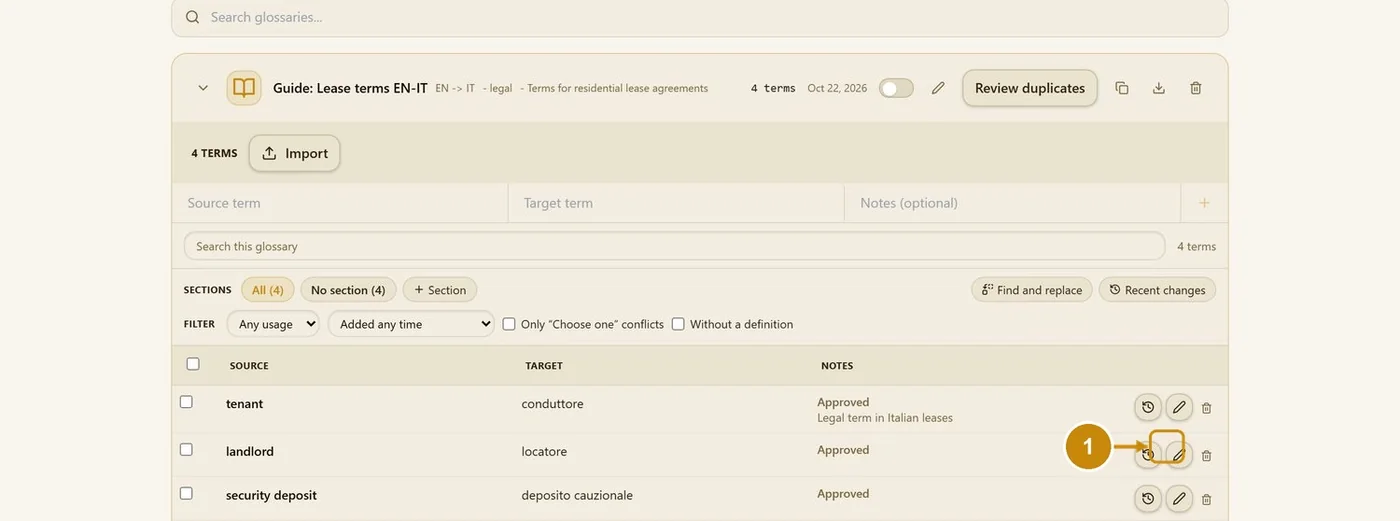
Click the pencil on the term's row.
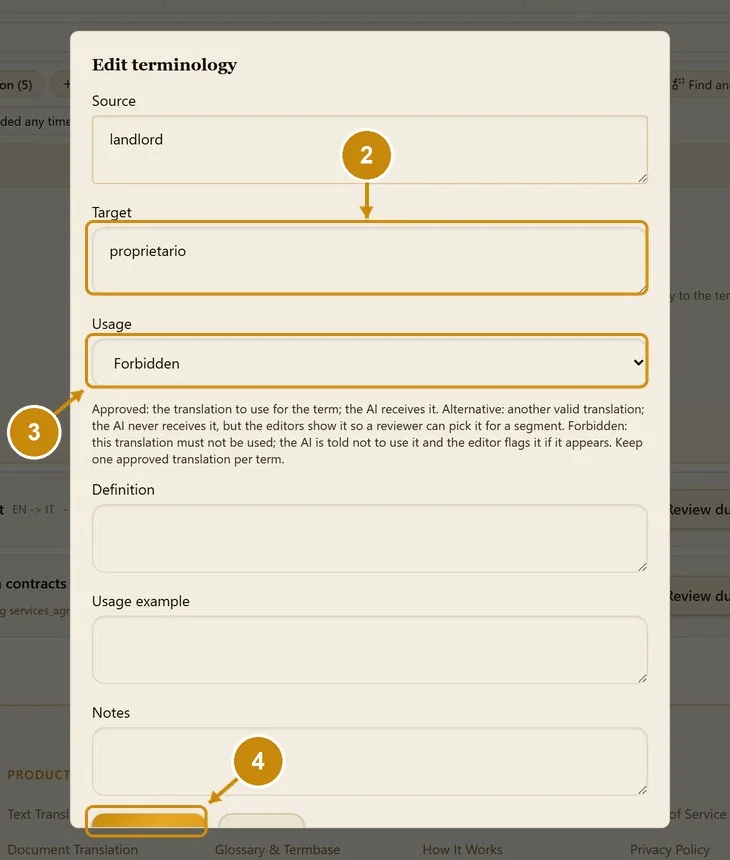
Change the wording if needed.
Choose the usage, for example Forbidden.
Click Save term.
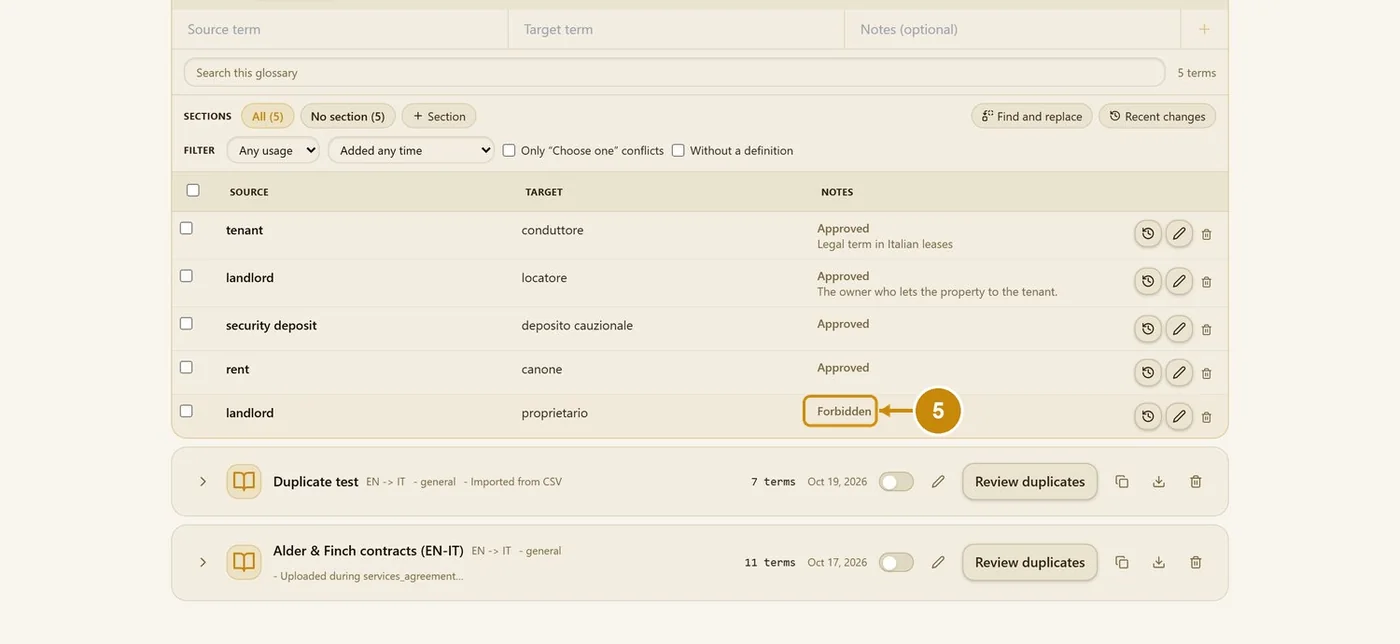
The usage is shown in the table (here Forbidden).
2.6 Import terms into a glossary
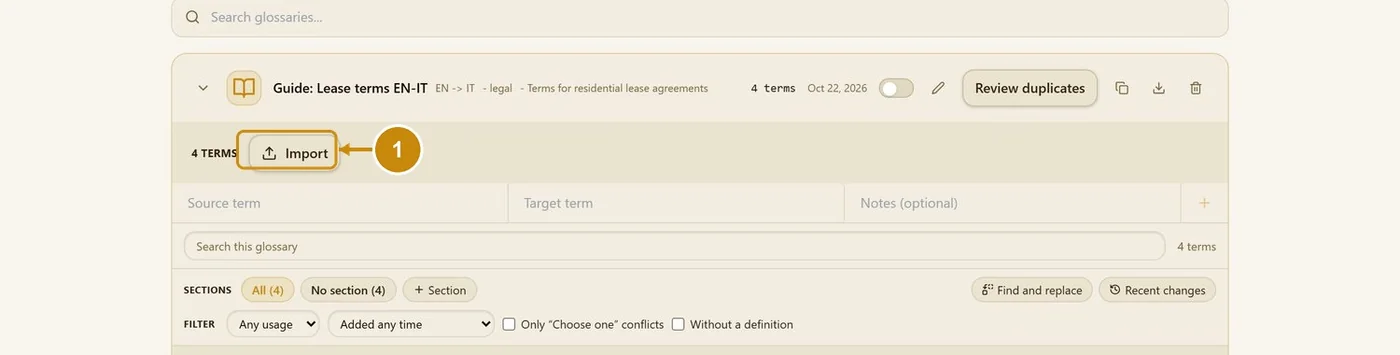
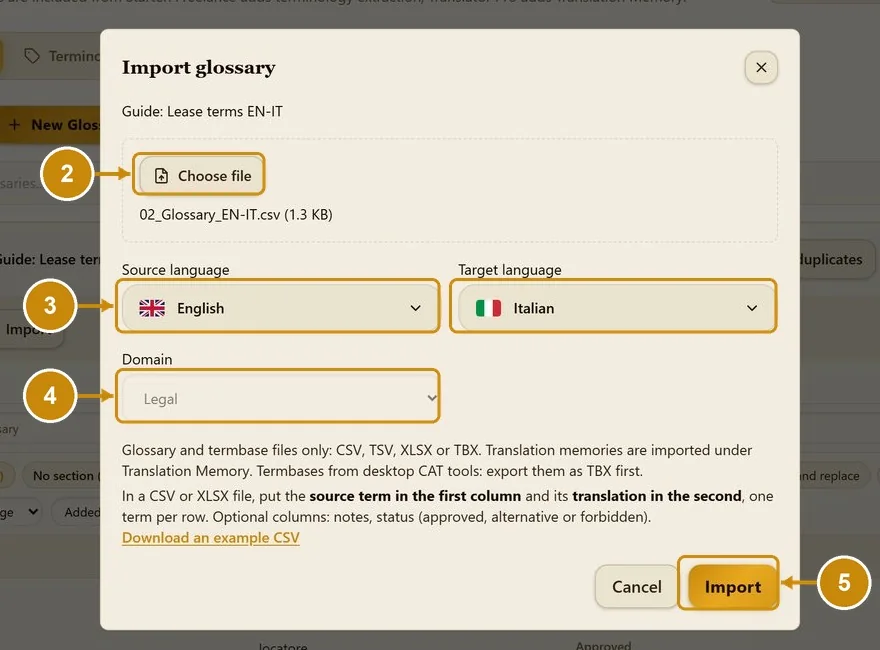
Open the glossary and click its Import button.
Click Choose file and pick a CSV, XLSX or TBX file.
Check the languages.
Choose the domain.
Click Import.
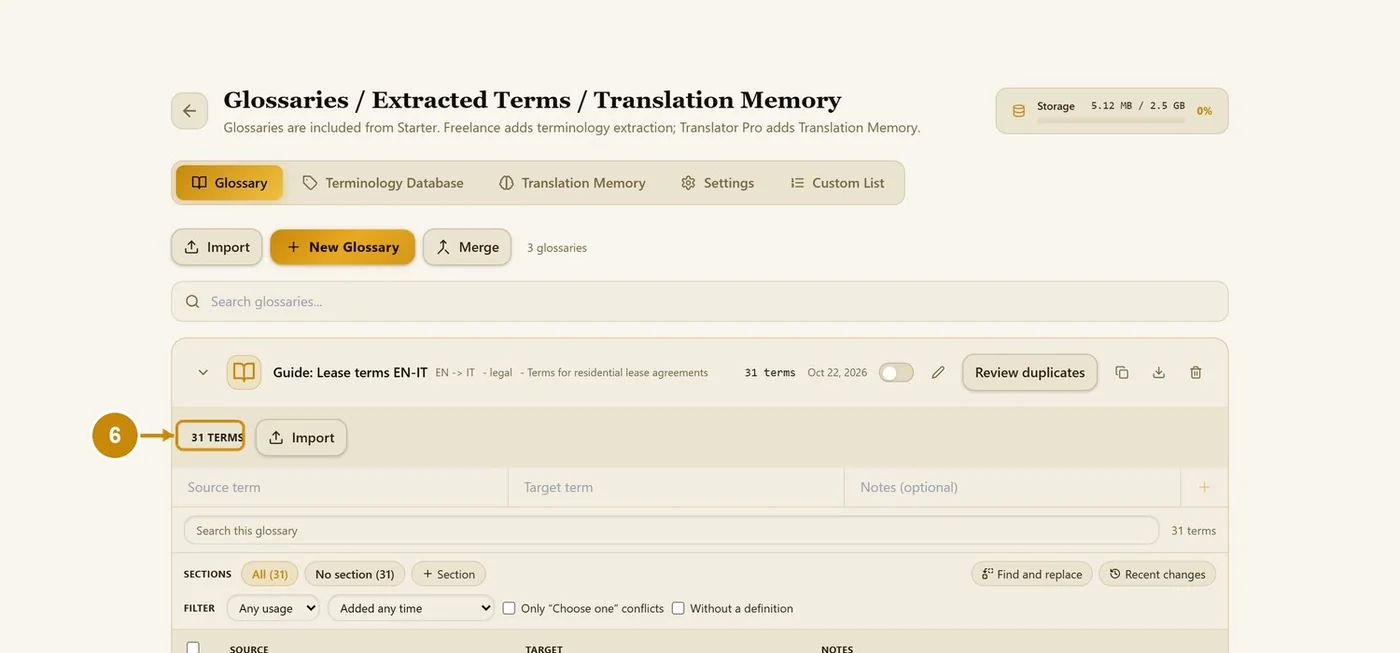
The new terms are added (here 31 terms). Terms that already exist are not added twice.
2.7 Create a glossary from a file
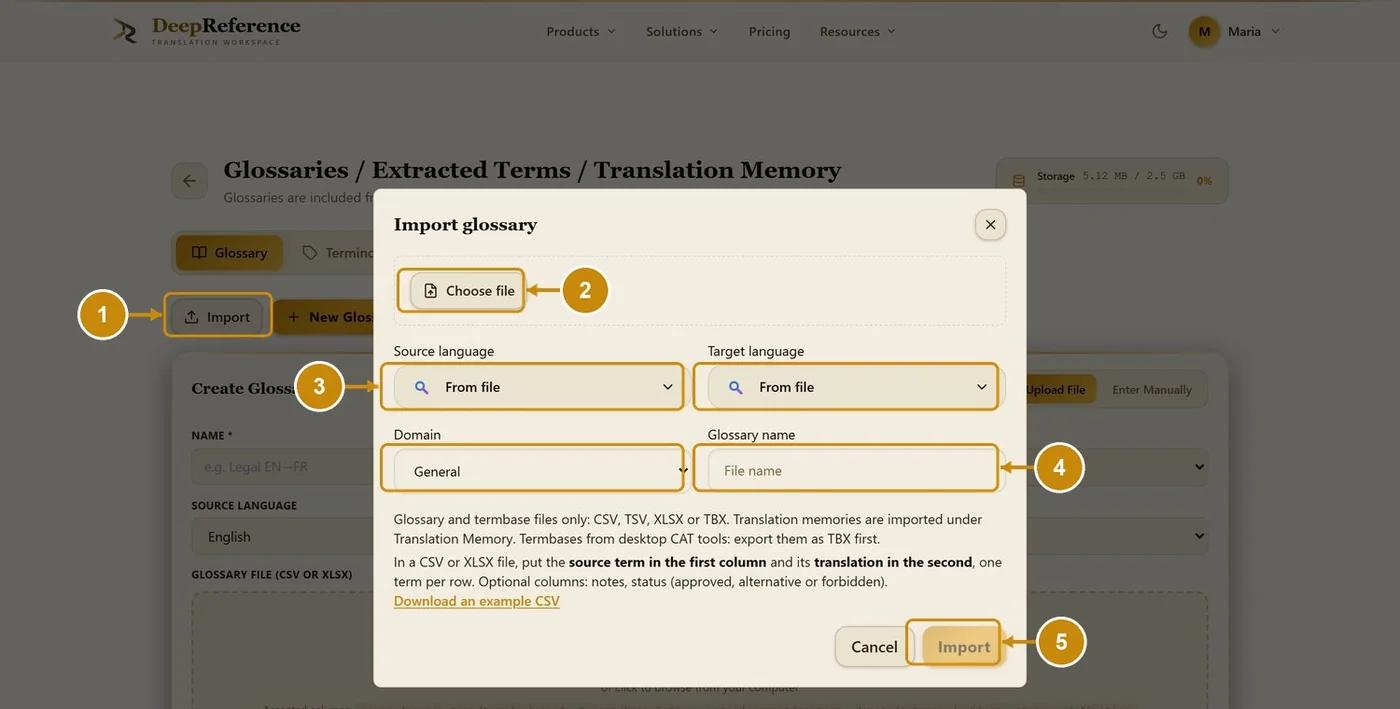
Click Import at the top of the Glossary tab.
Click Choose file and pick the file.
Check the languages and the domain.
Type the glossary name.
Click Import.
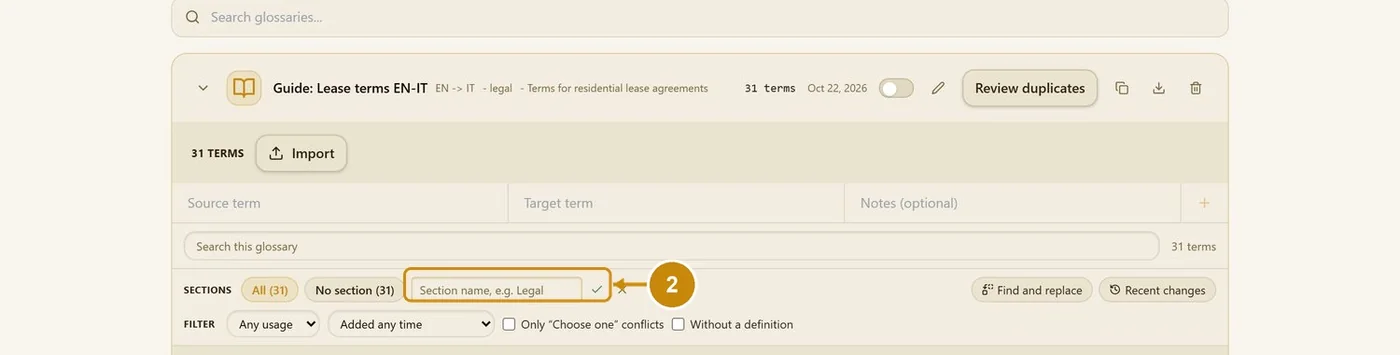
2.8 Sections
Sections group the terms of one glossary, for example Payments.
Click + Section.
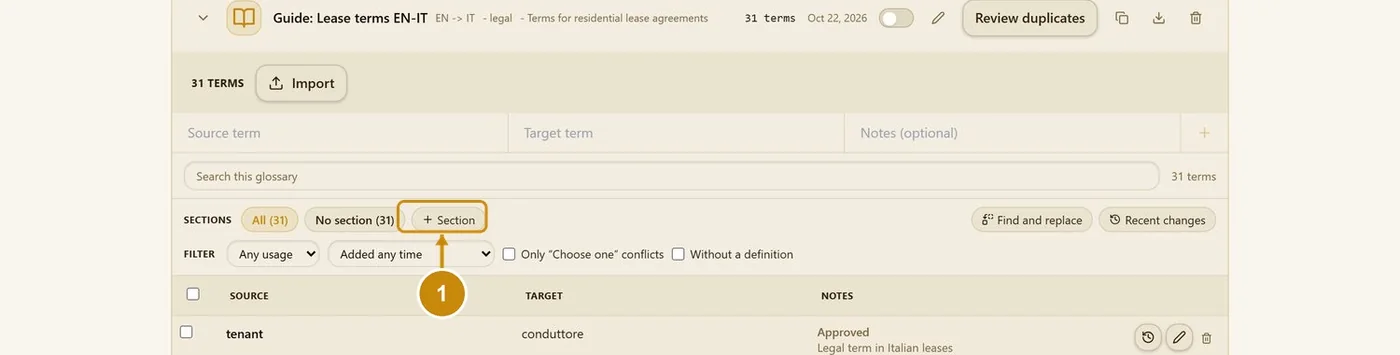
Type the section name and press Enter (or click the tick).
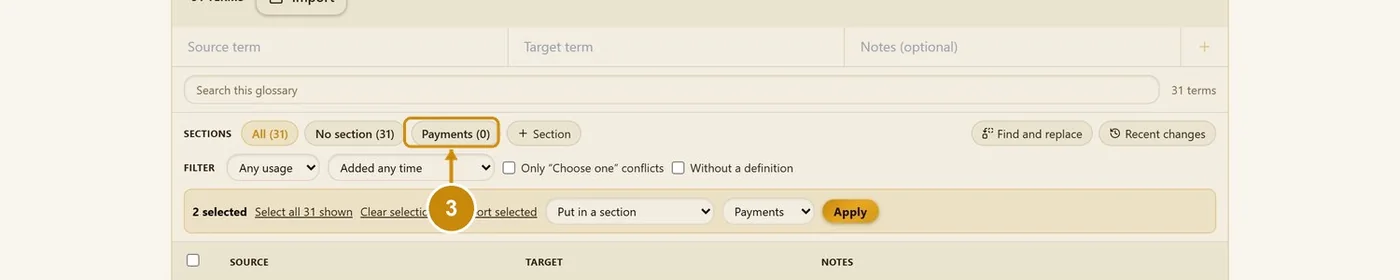
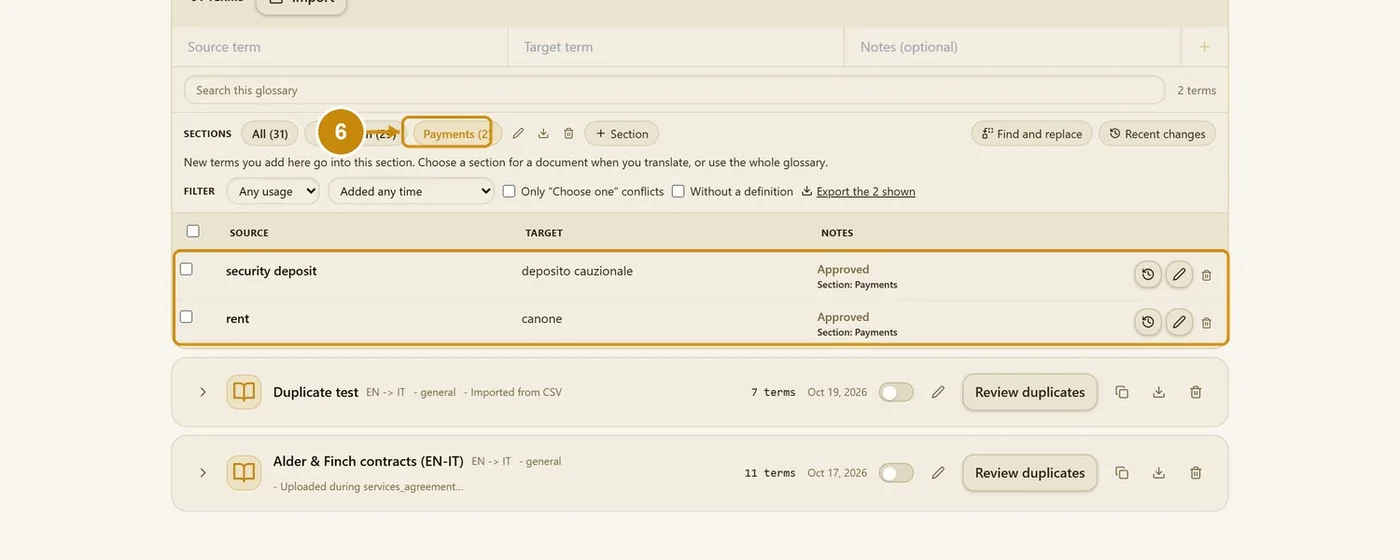
The section appears next to All and No section. Click it to show only its terms.
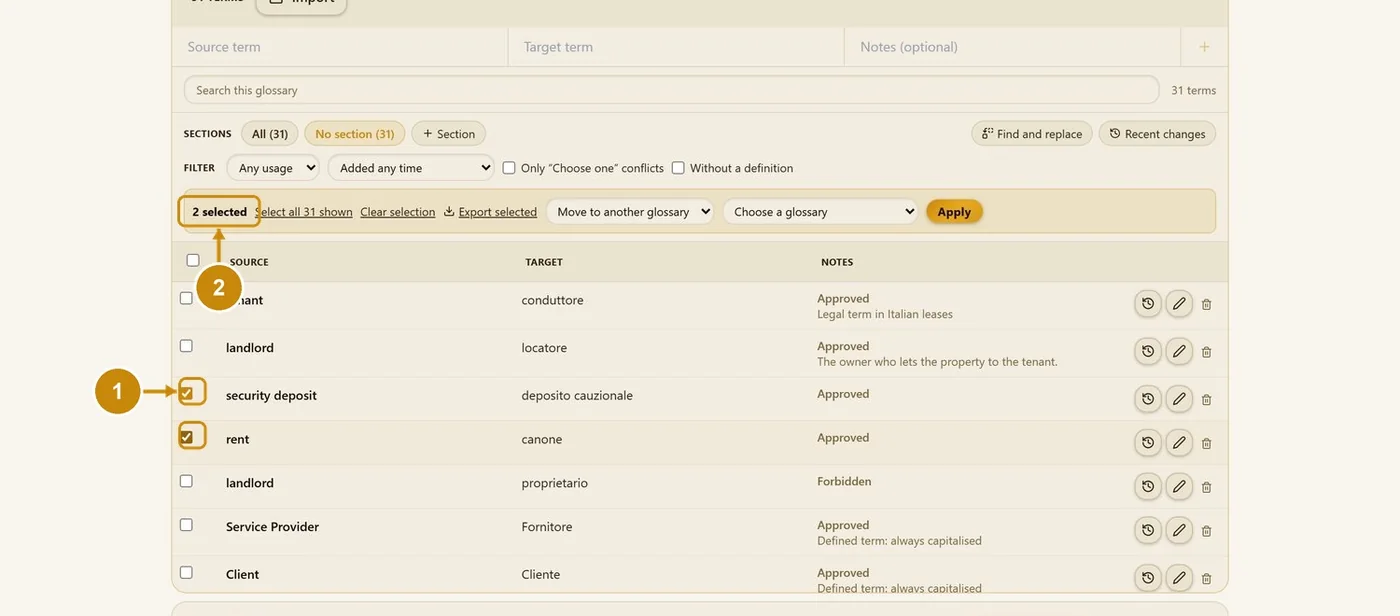
2.9 Bulk actions
Tick the terms you want (or the box in the header for the whole page).
The bar shows how many terms are selected.
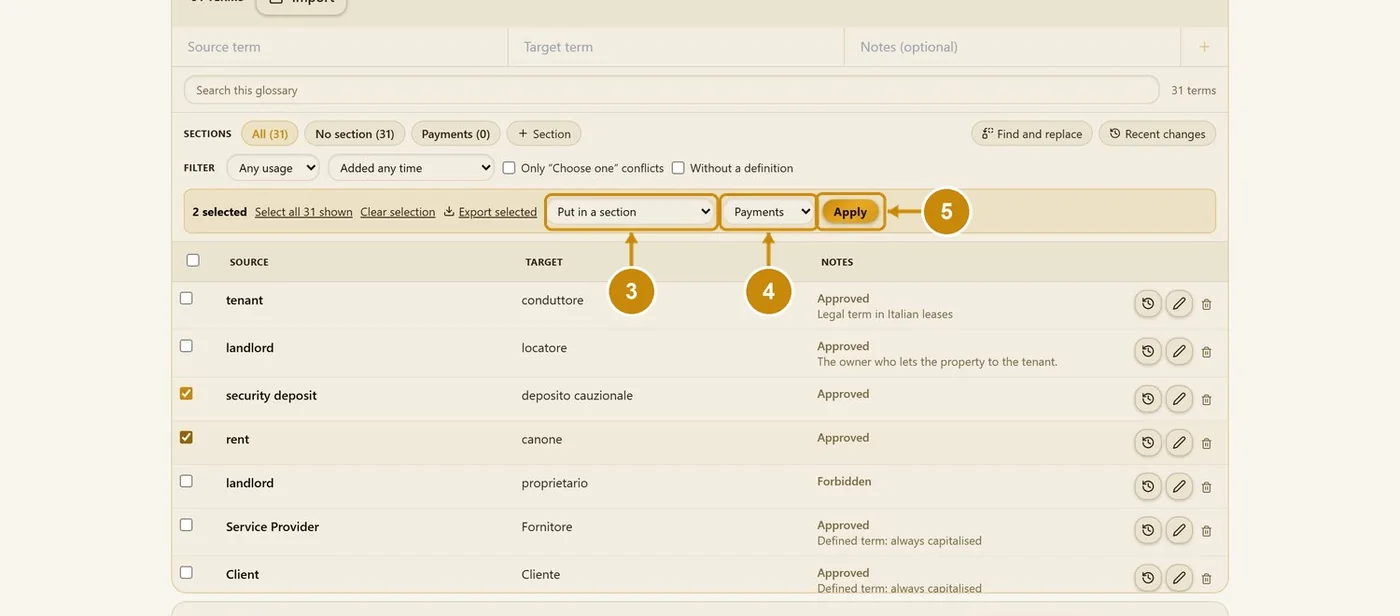
Choose the action, for example Put in a section.
Choose the destination (here Payments).
Click Apply.
The terms are now in the section.
2.10 Find and replace
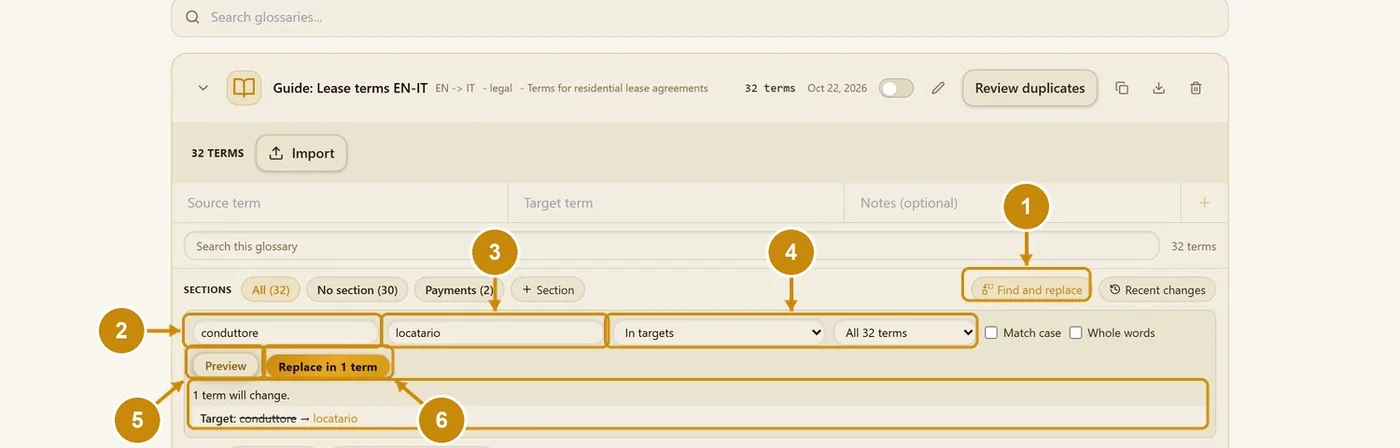
Click Find and replace.
Type the text to find.
Type the replacement.
Choose where to search and which terms.
Click Preview.
Check the change, then click Replace.
2.11 Recent changes and term history
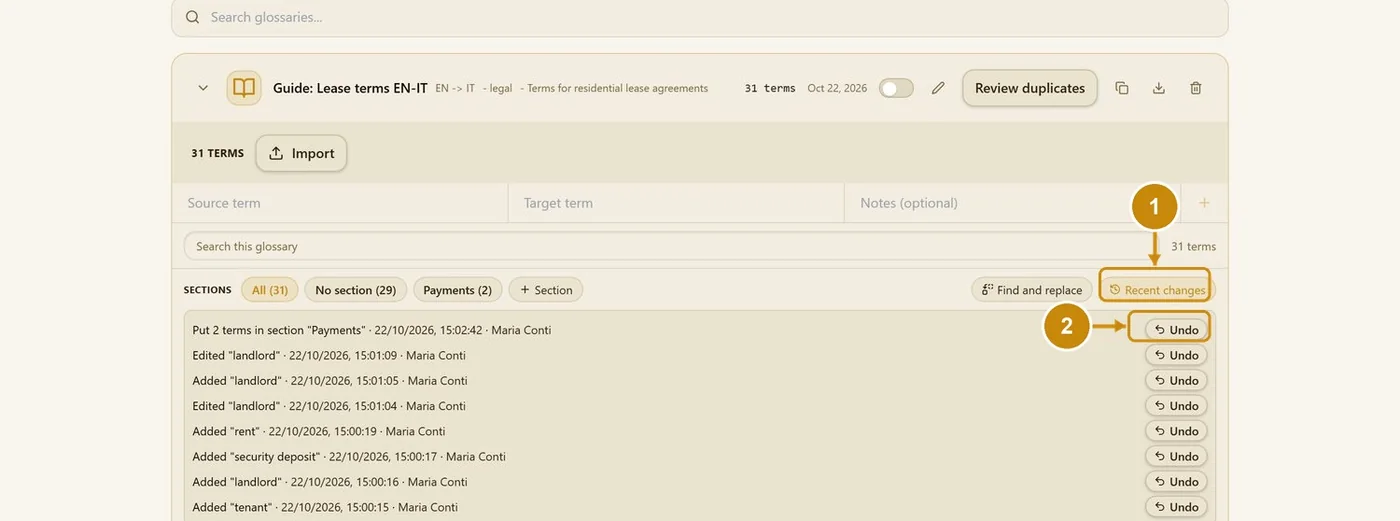
Click Recent changes.
Click Undo next to a change to reverse it.
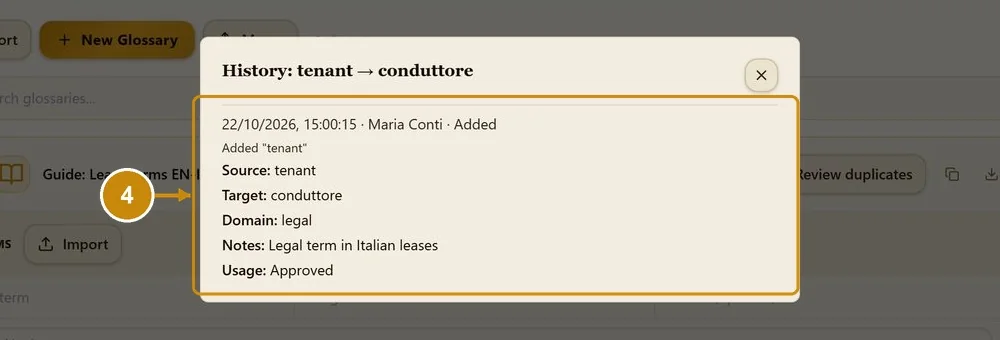
Click the clock icon on a term's row to see its history.
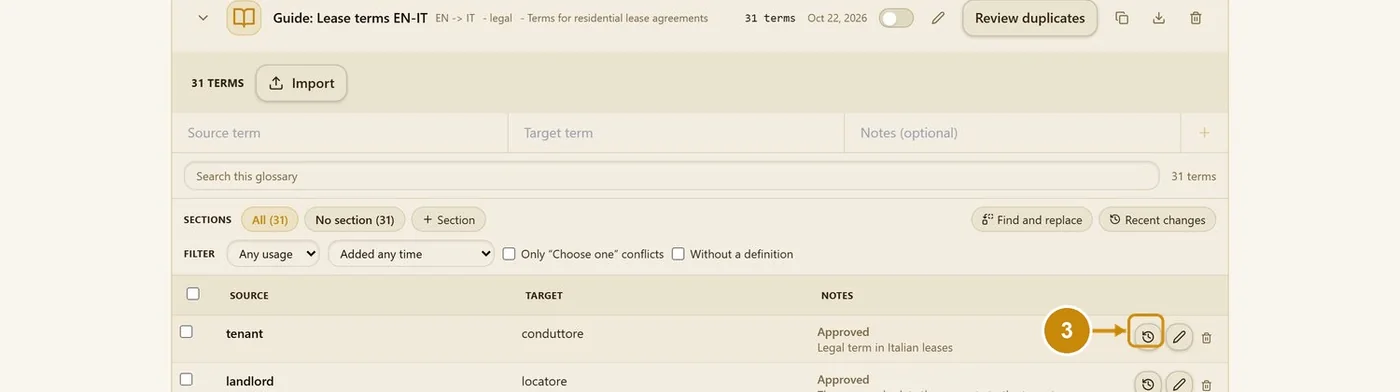
The history lists every version of the term.
2.12 Merge glossaries
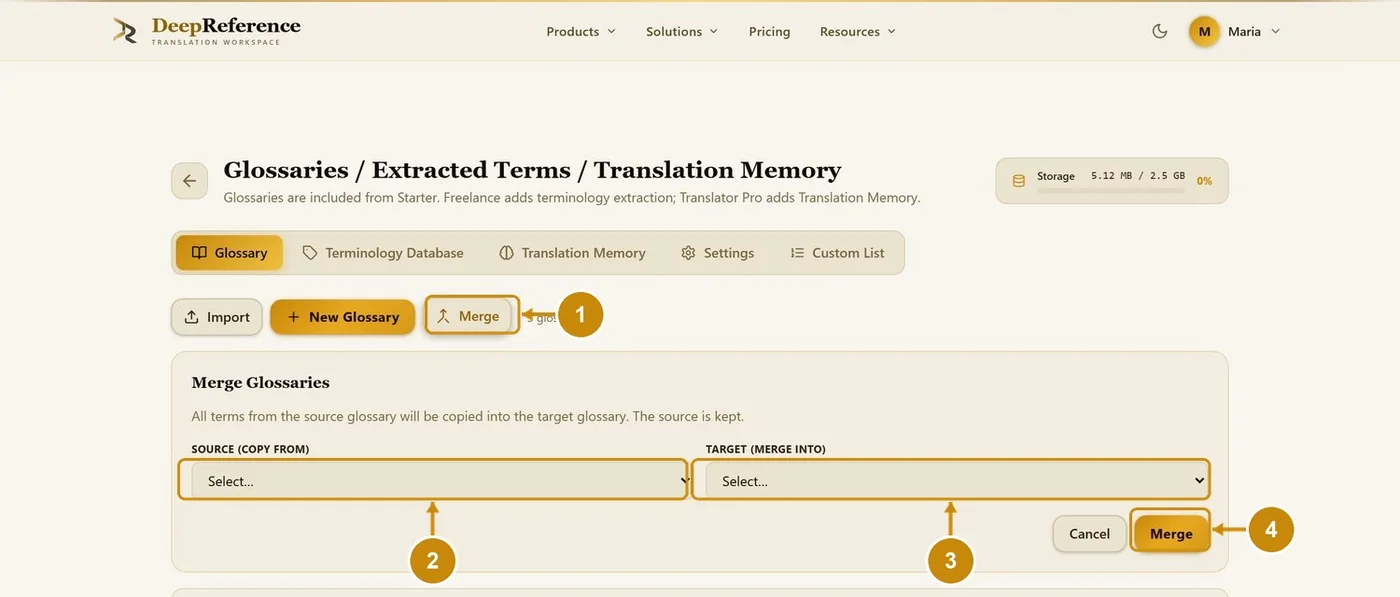
Click Merge.
Choose the glossary to copy from.
Choose the glossary to merge into.
Click Merge.
2.13 Review duplicates
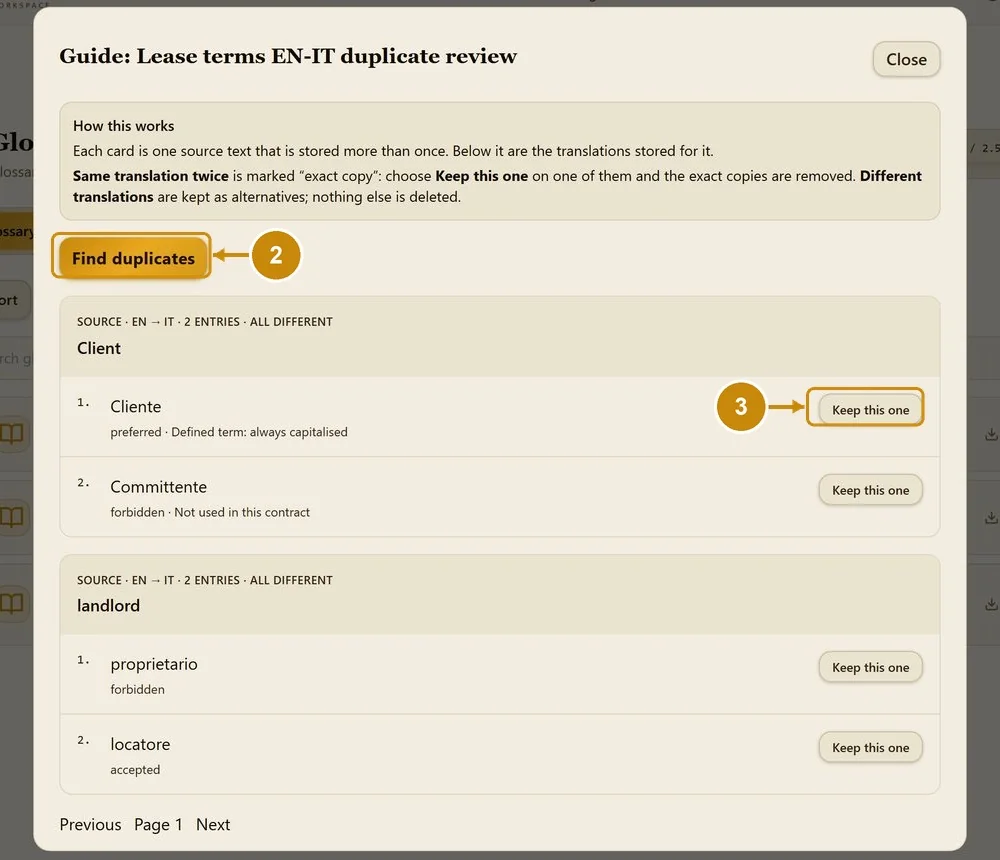
Click Review duplicates on the glossary row.

Click Find duplicates.
Click Keep this one on the translation you want to keep. Exact copies are removed; different translations are kept as alternatives.
2.14 Duplicate a glossary
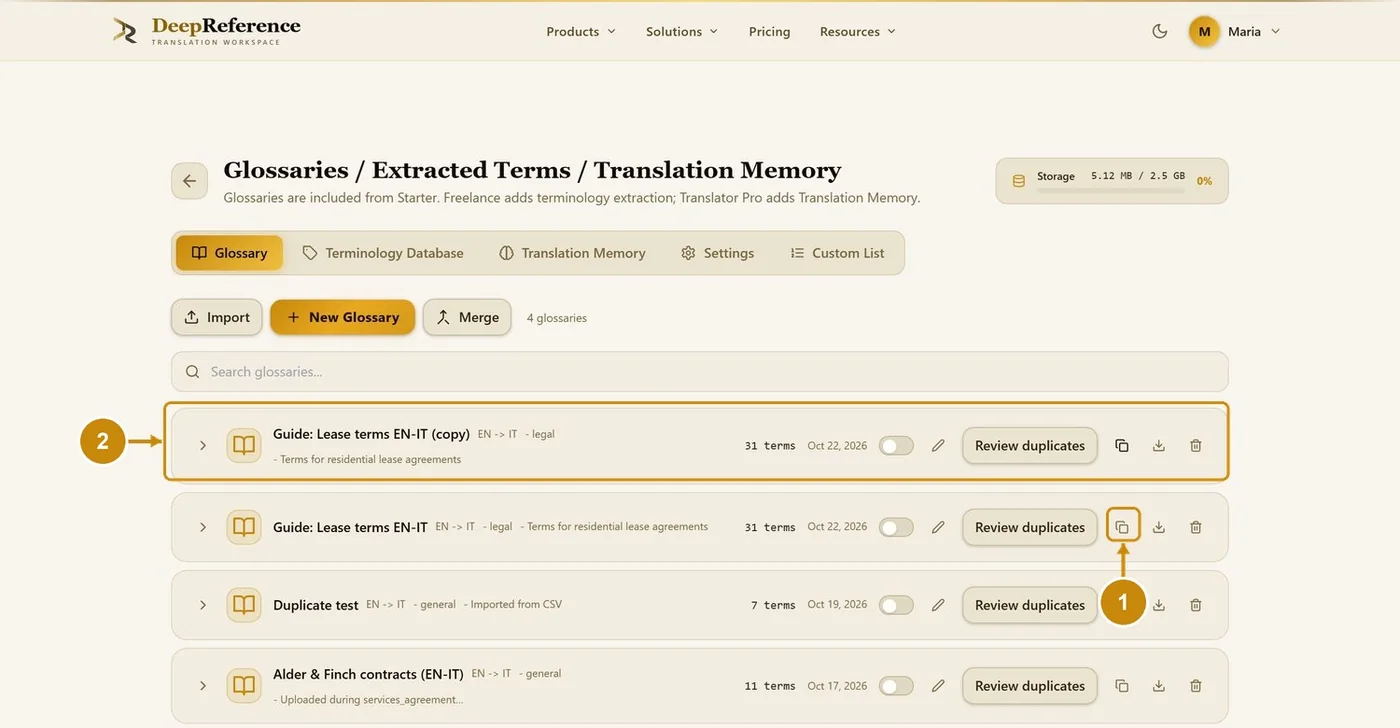
Click Duplicate glossary (the copy icon) on the row.
The copy appears in the list with "(copy)" in its name.
2.15 Use a glossary correctly
A glossary works best when every entry is short and unambiguous. Check these points before you translate:
- Language pair: the glossary must have the same source and target language as the document. An English → Italian glossary is not used for English → French.
- One approved translation per term. Keep other valid wording as Alternative (it is never sent to the model) and wording to avoid as Forbidden.
- Enter the term, not a sentence: a word or short phrase as it appears in the source, with the target in its basic form. The model fits it into the sentence (plural, case); check those forms in review.
- Names, product codes and brands that must not change: enter the same text on both sides, for example ACME-X1 → ACME-X1.
- Select the glossary where you translate: in the text translator, or in the glossary step of document translation (Use existing glossary).
- Only the terms that appear in your text are sent with it, so one complete glossary per client and language pair is fine.
- After translation, the quality checks flag every segment where an approved term is missing. Review those segments in the editor.