User guide
9. Revision comparison
Use it when the client sends a new version of a document. Same language compares two versions and shows what changed; nothing is translated. With translation updates a document you already translated here: only the changed sentences are re-translated, every unchanged sentence keeps its approved translation.
9.1 Same language
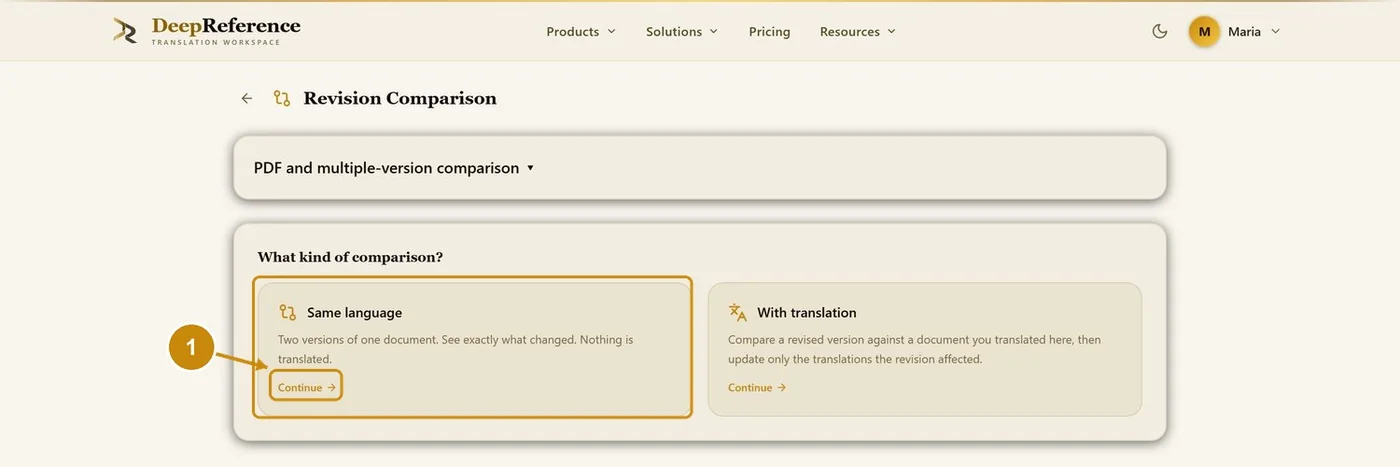
Open Revision Comparison and click Continue under Same language.
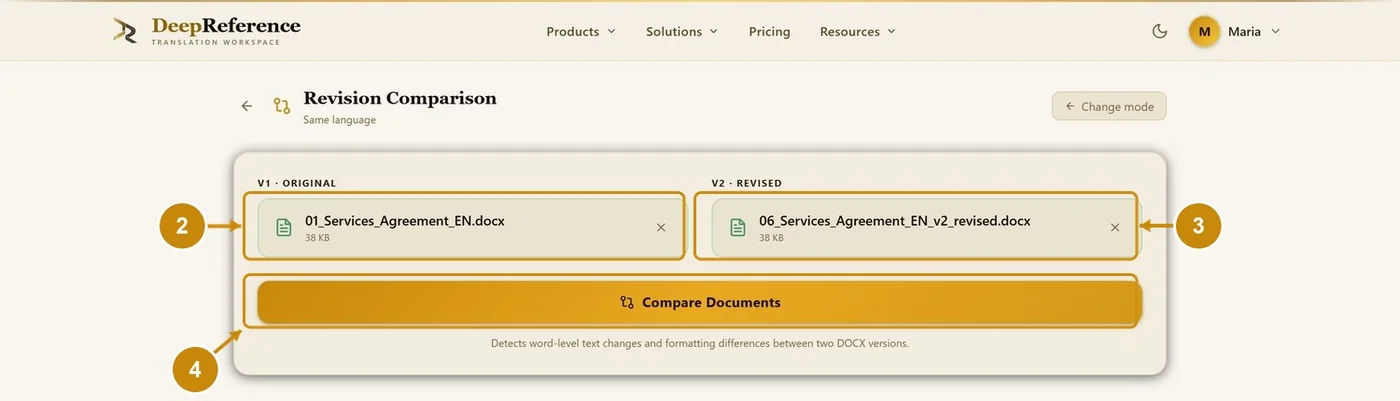
Choose the old version under V1 · Original.
Choose the new version under V2 · Revised.
Click Compare Documents.
The summary shows how many changes were found.
Download Word with tracked changes, the revised document or a summary CSV.
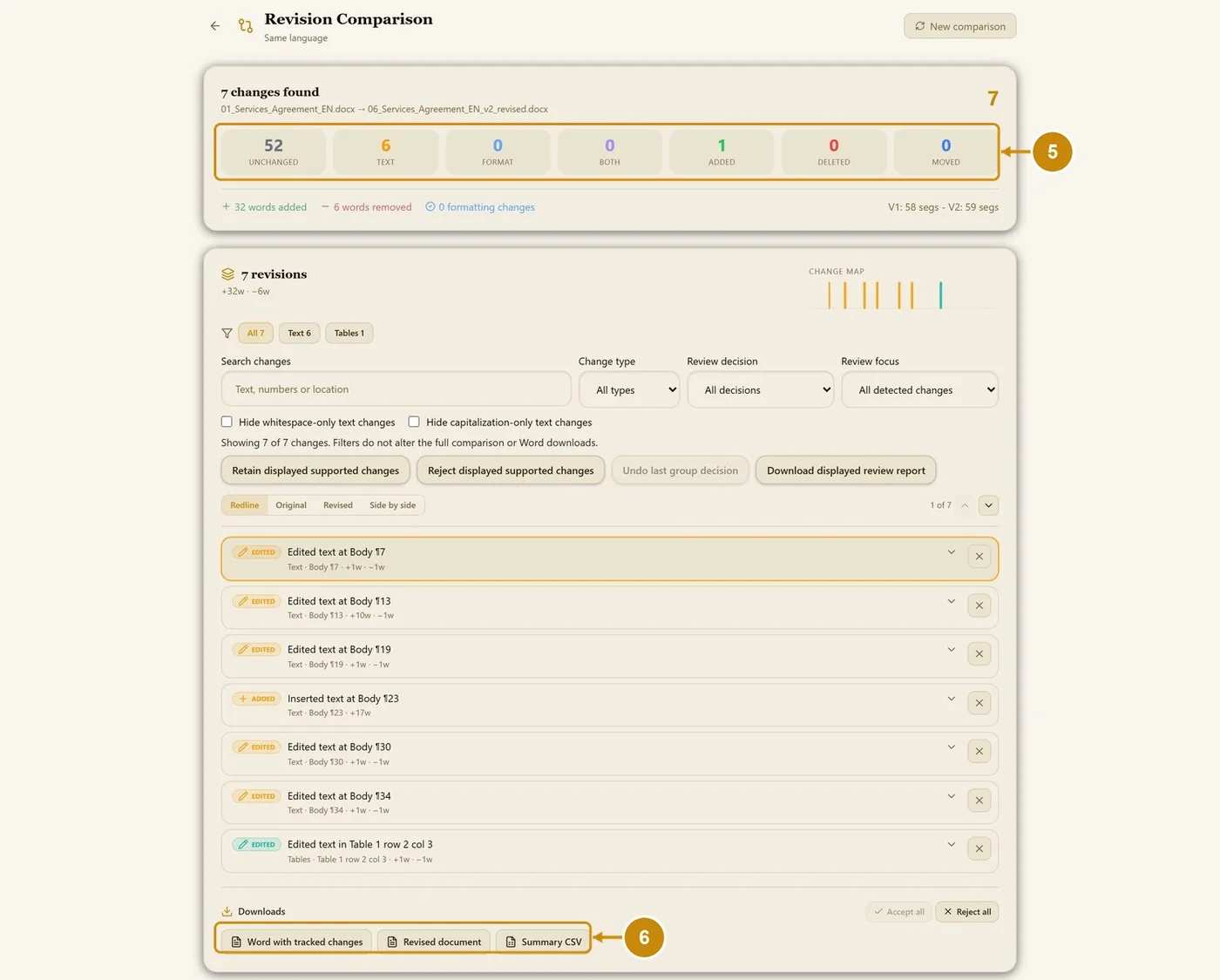
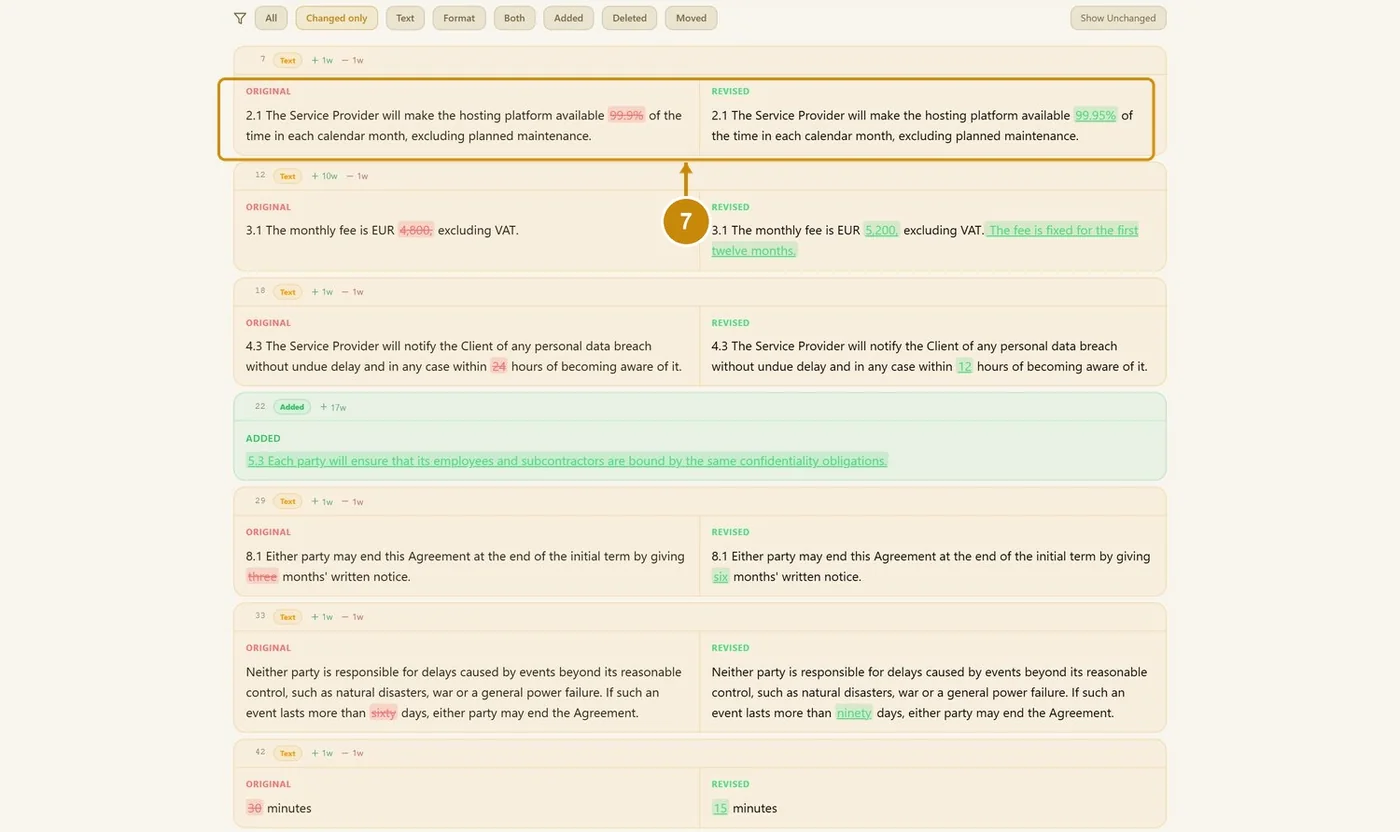
Every change is shown side by side: removed words in red, added words in green.
9.2 With translation (update an existing translation)
Open Revision Comparison and click Continue under With translation.
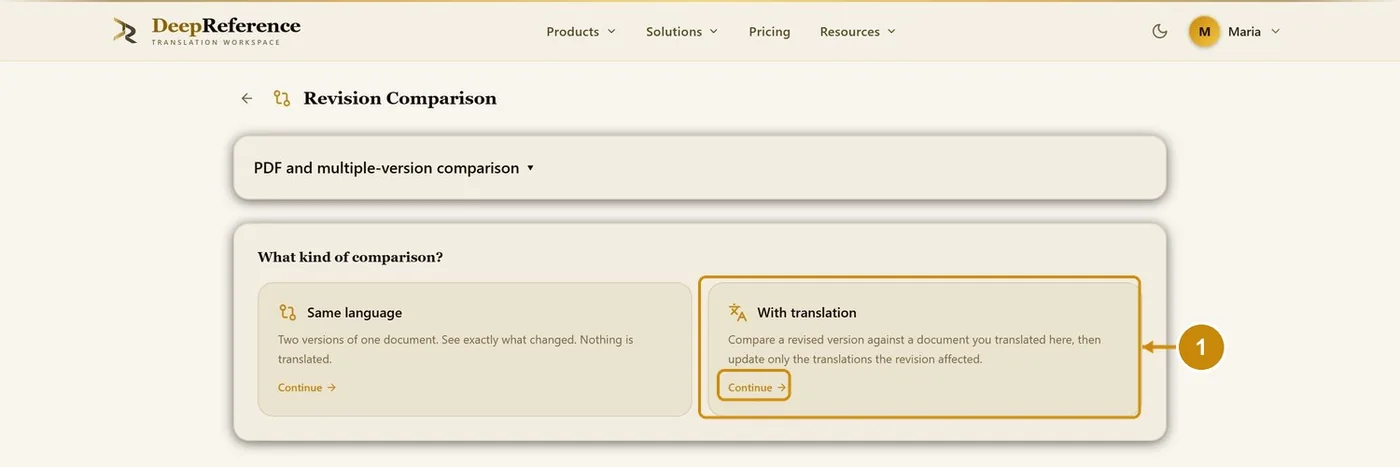
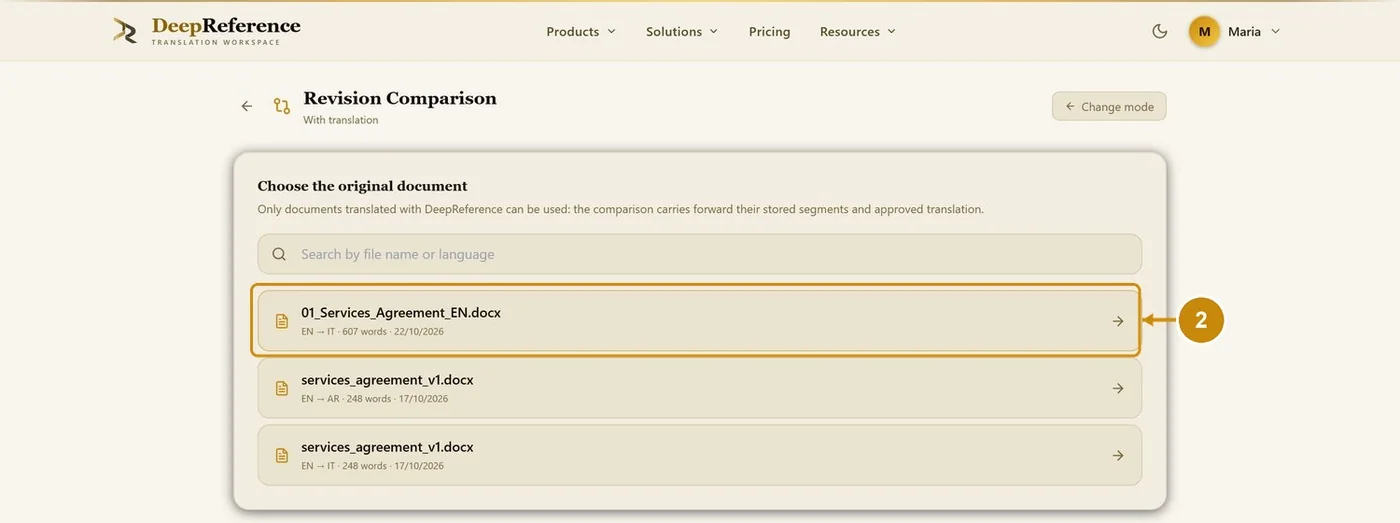
Choose the original document you translated here.
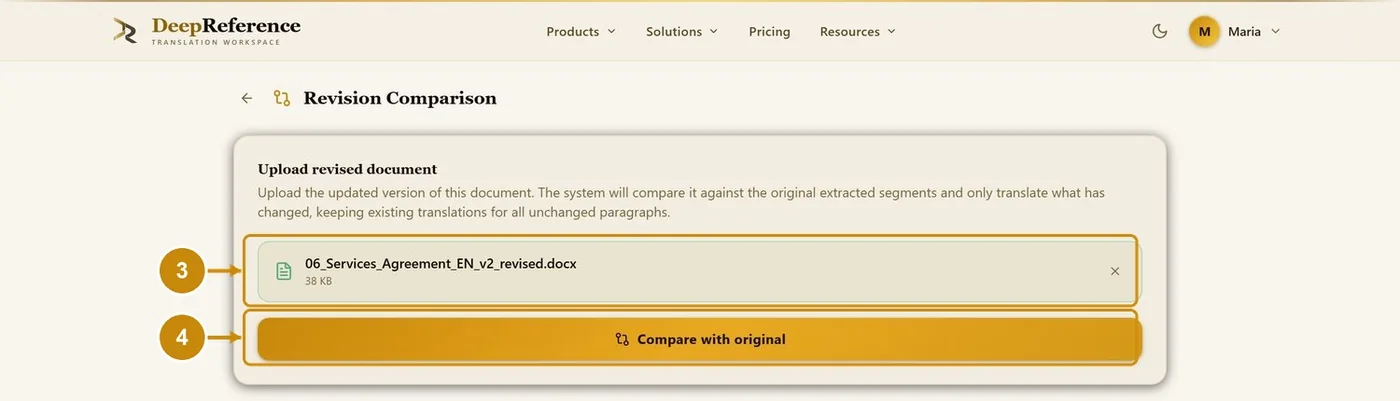
Choose the revised DOCX.
Click Compare with original.
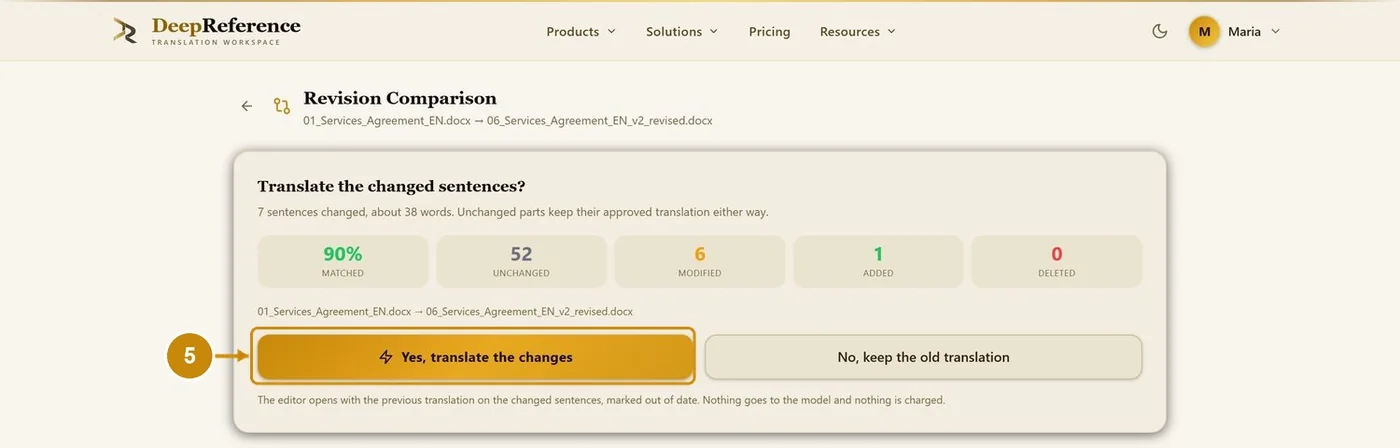
Click Yes, translate the changes. (No, keep the old translation marks the changed sentences as out of date; nothing is sent to the model or charged.)
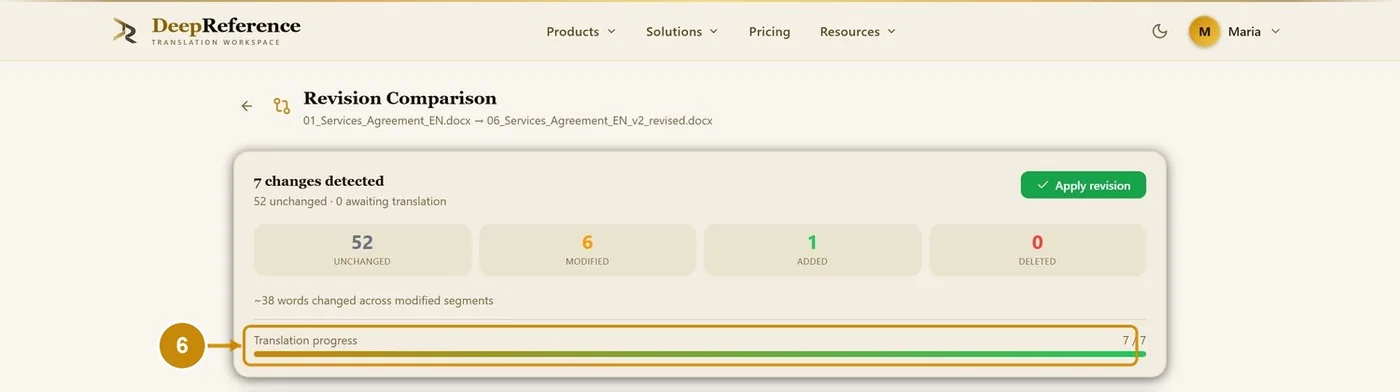
The changed sentences are translated (here 7 / 7).
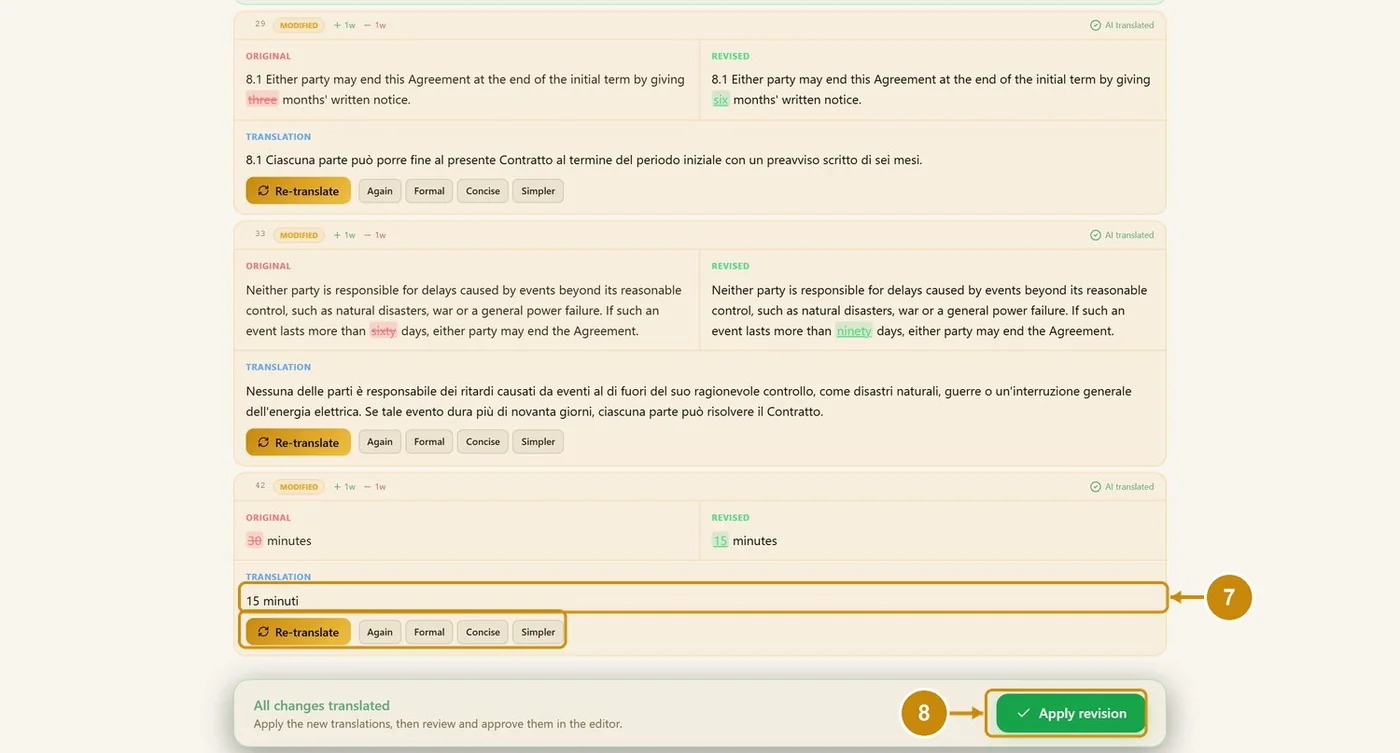
Check each new translation. Re-translate, Again, Formal, Concise or Simpler redo one segment.
Click Apply revision.
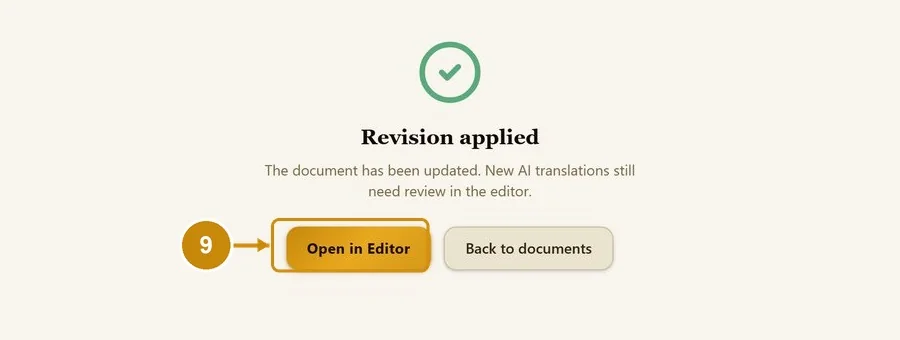
Click Open in Editor to review and approve the new translations.