User guide
8. Document Editor (page view)
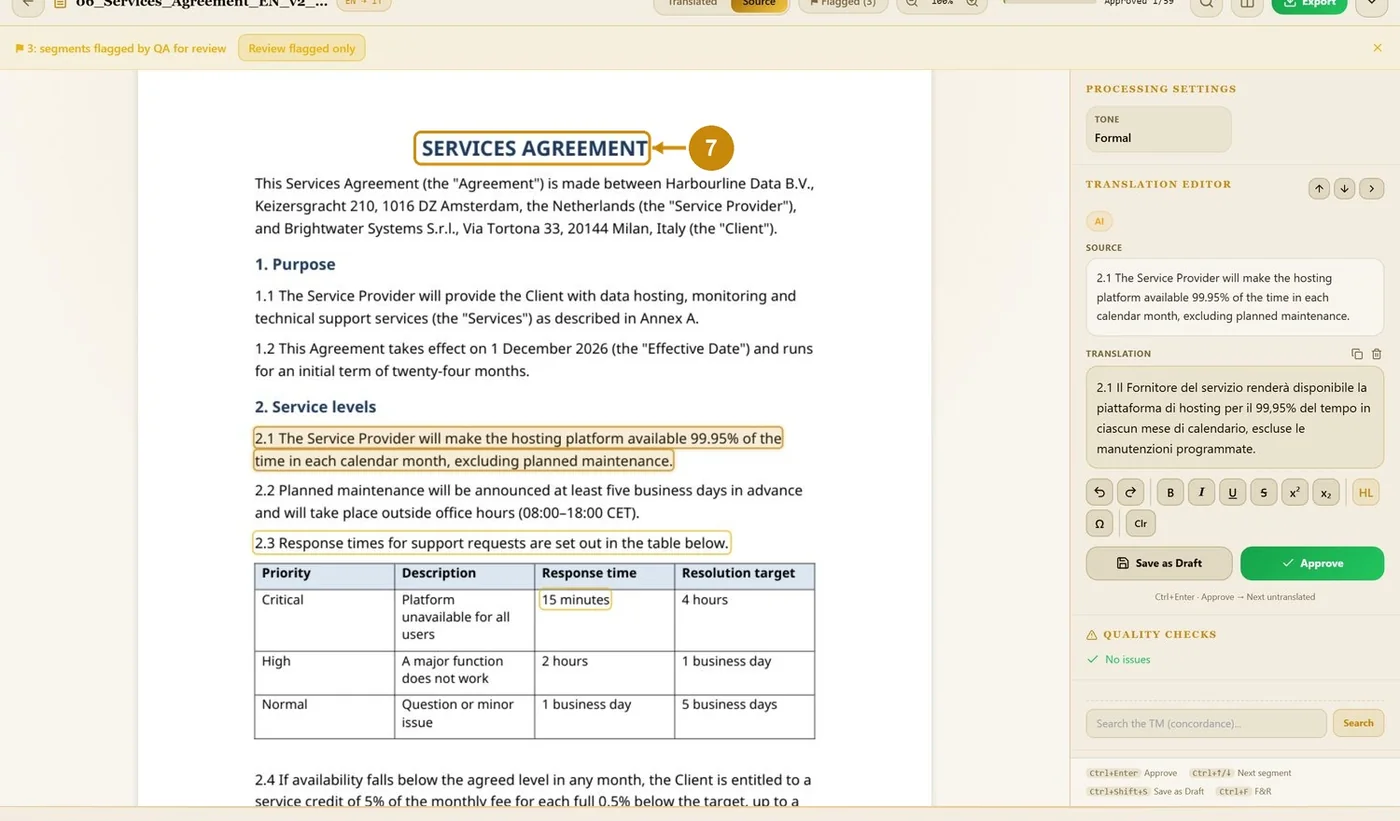
The Document Editor shows the translated document as a page, with its layout and tables, so you can review in context.
1
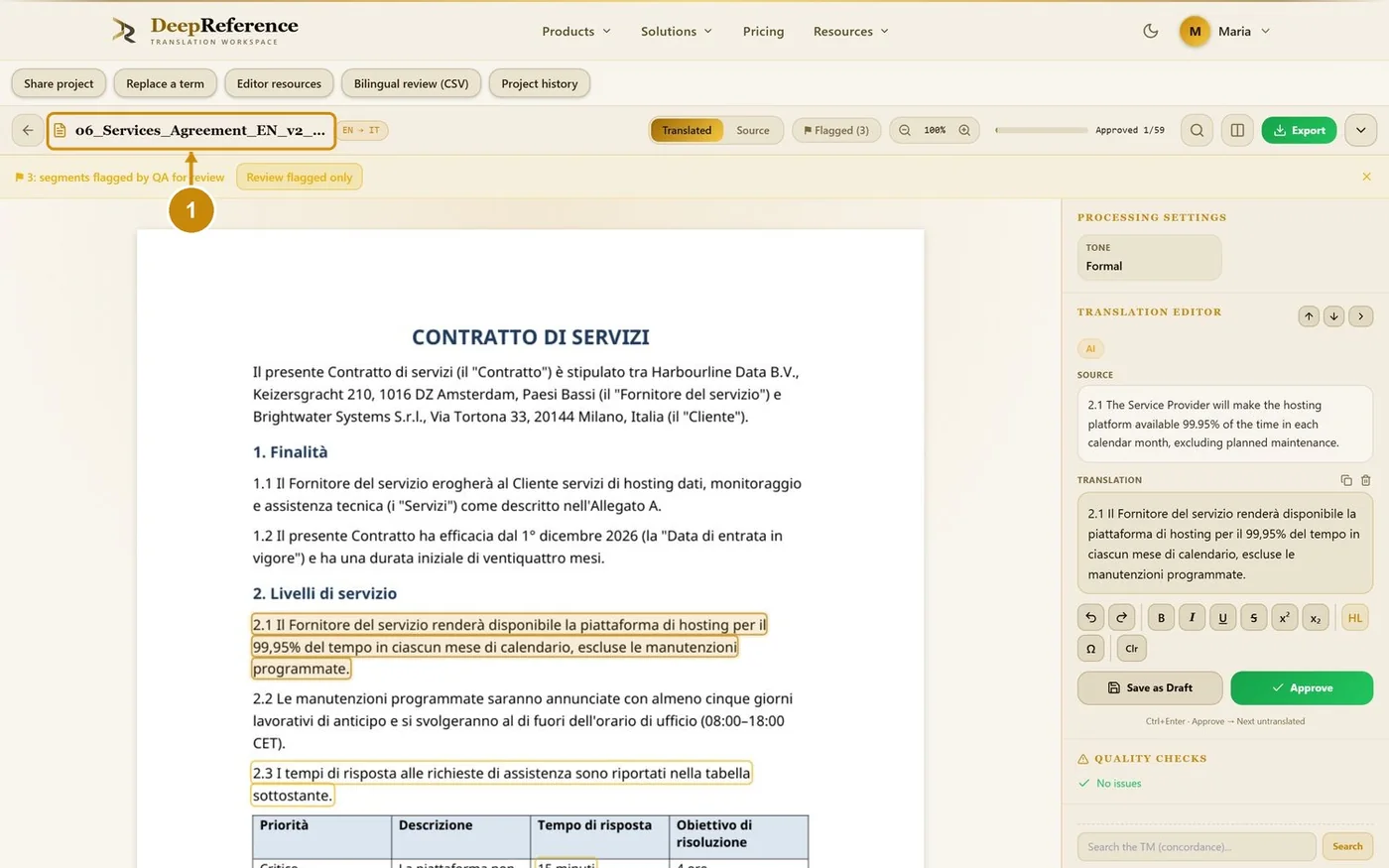
Open Recent documents → Open → Document Editor. The translated page opens.
2
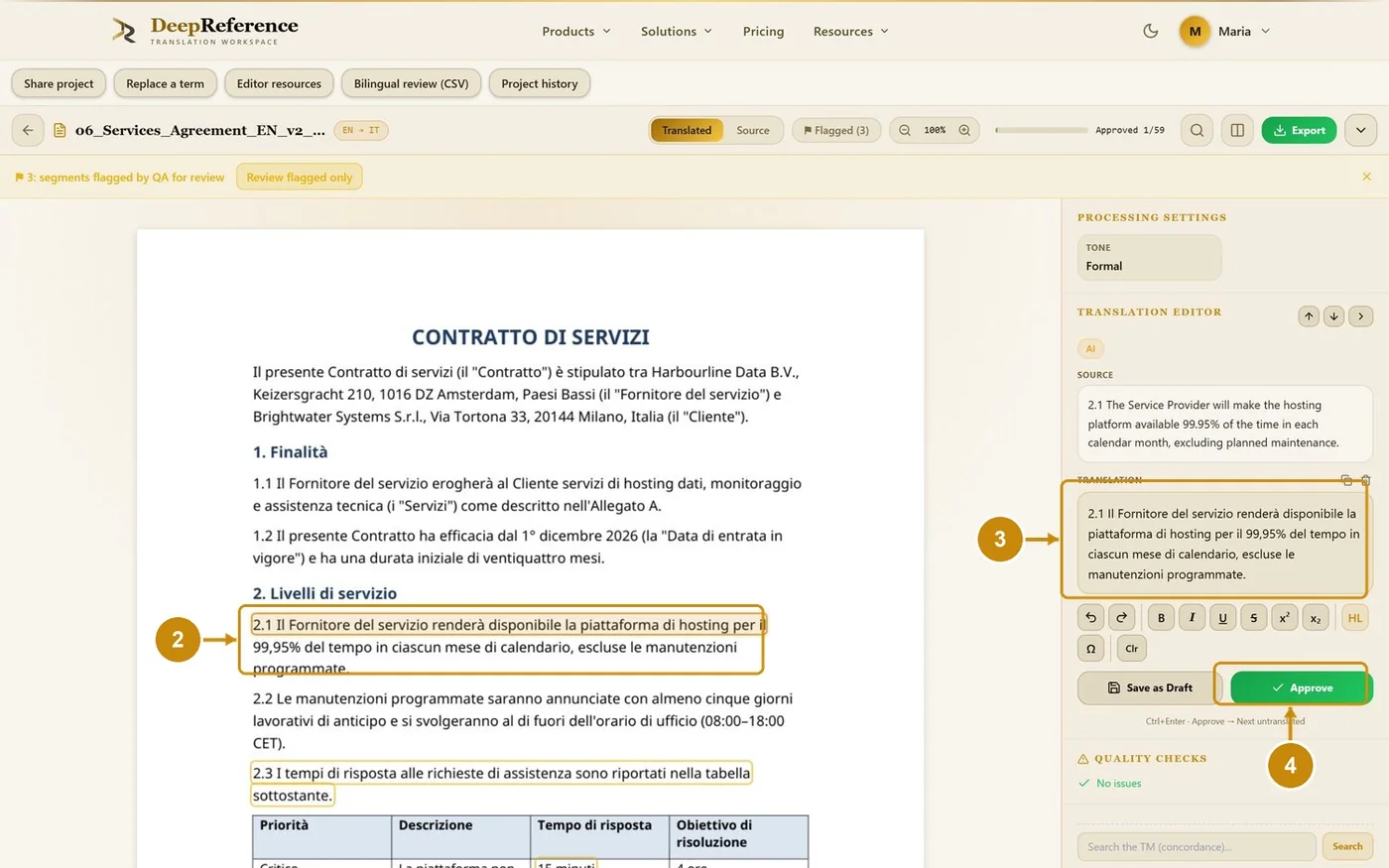
Click a text block on the page.
3
Edit the translation on the right.
4
Click Approve (or Save as Draft).
5
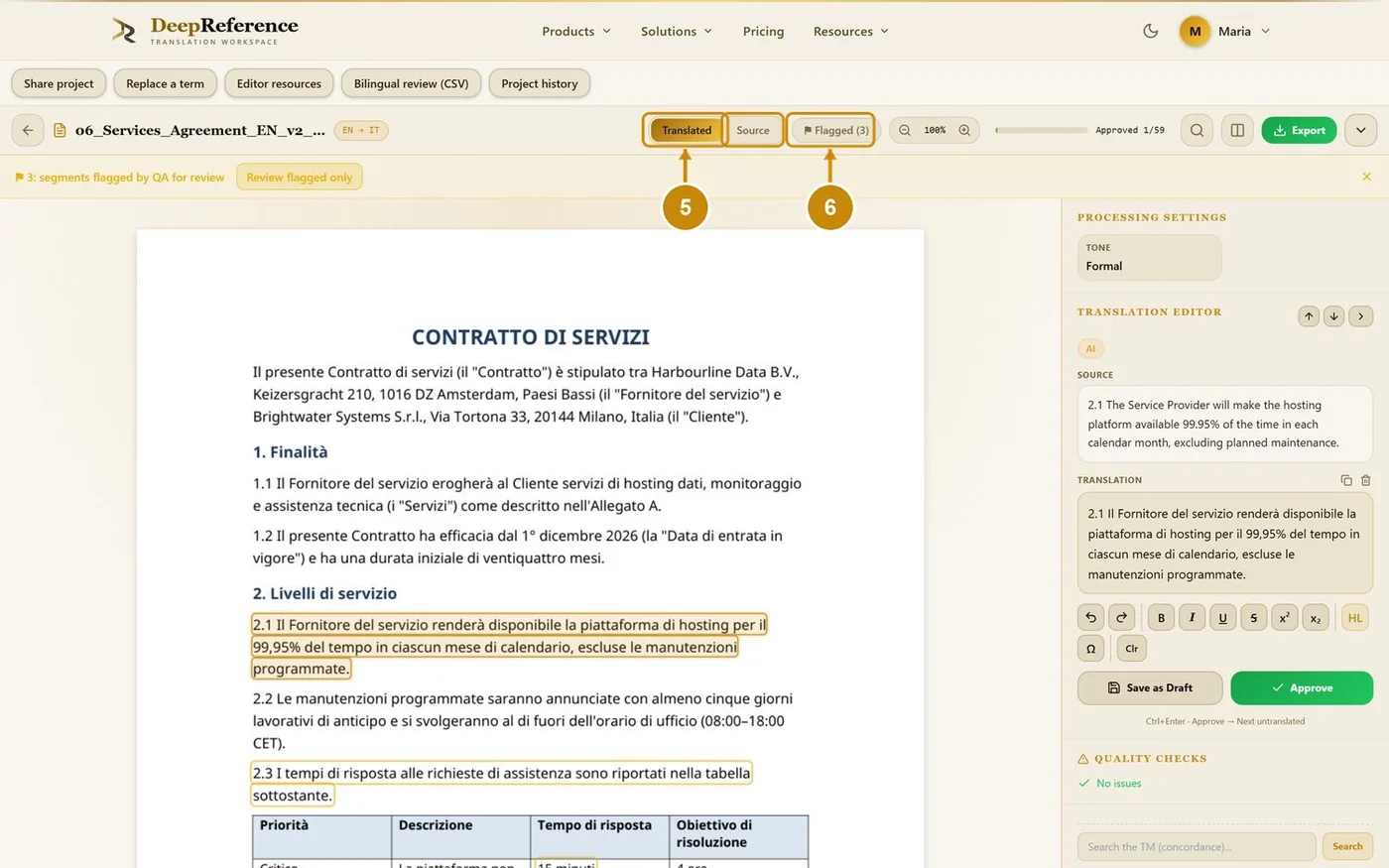
Click Source to see the original page; Translated switches back.
6
Flagged shows the blocks with QA issues.
7
The source page is shown.
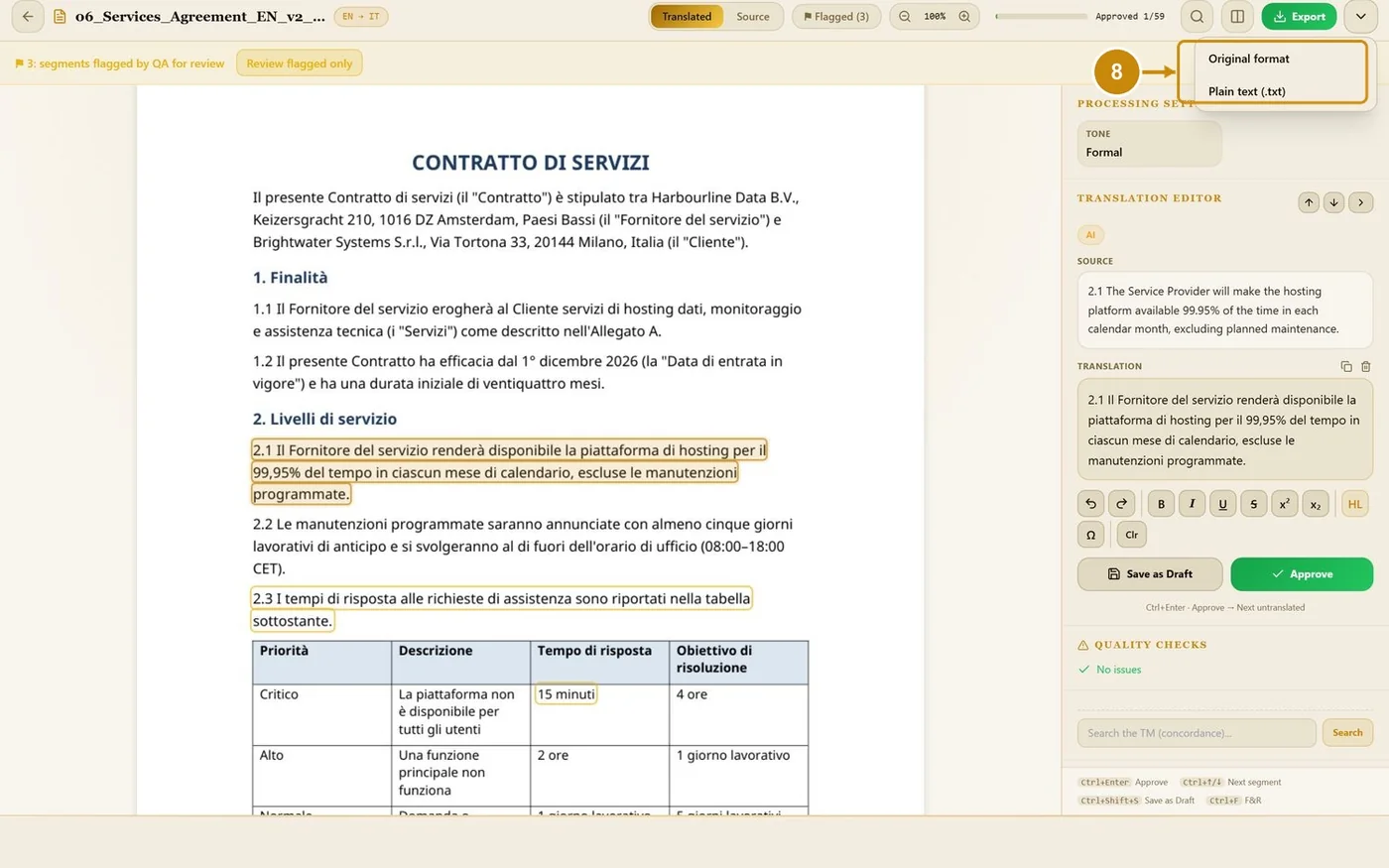
8
Click Export and choose Original format or Plain text.