Document Translation
Upload a working document, translate its content with your project settings, and receive a rebuilt file instead of a loose block of translated text.
See it in the workspace
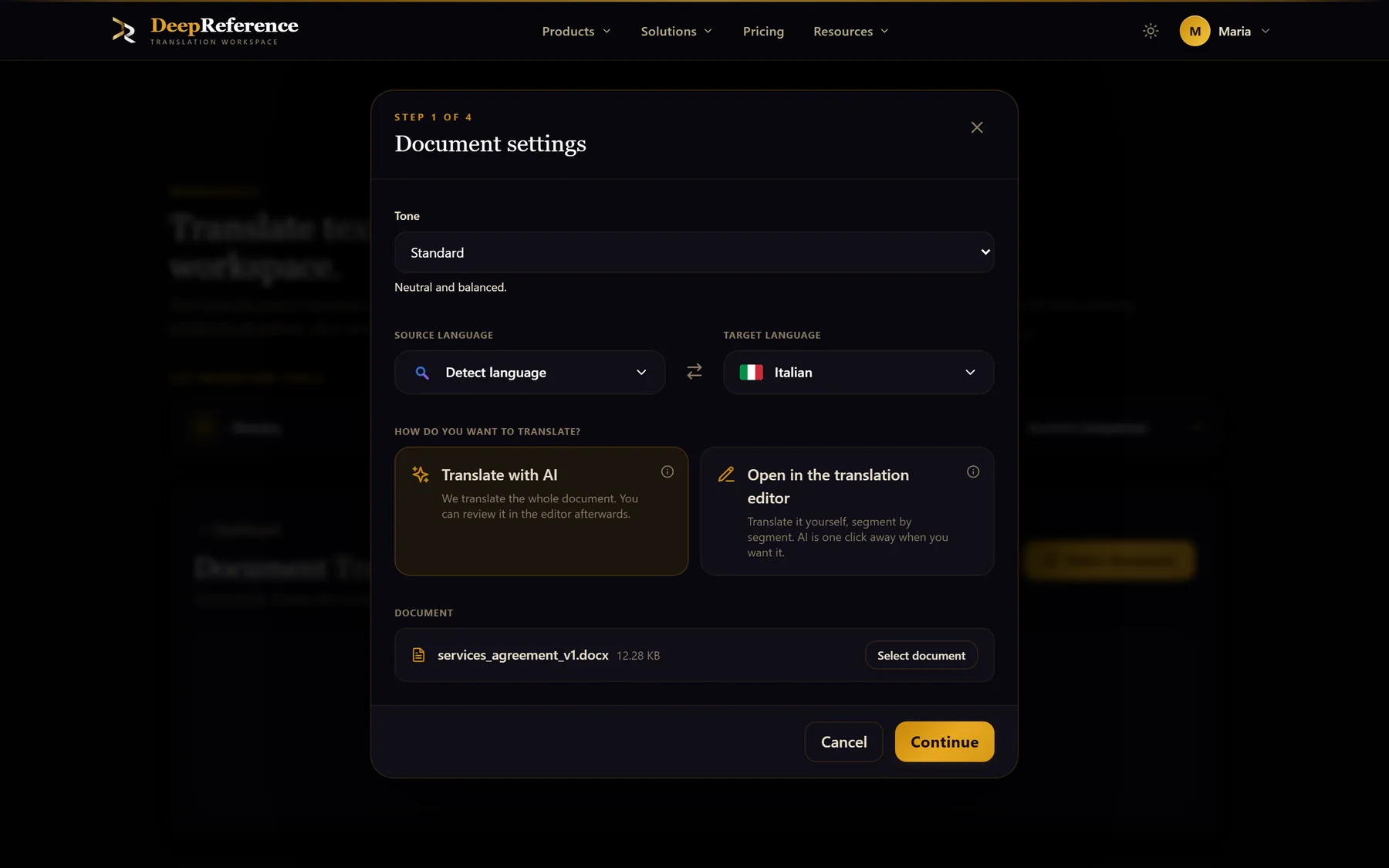
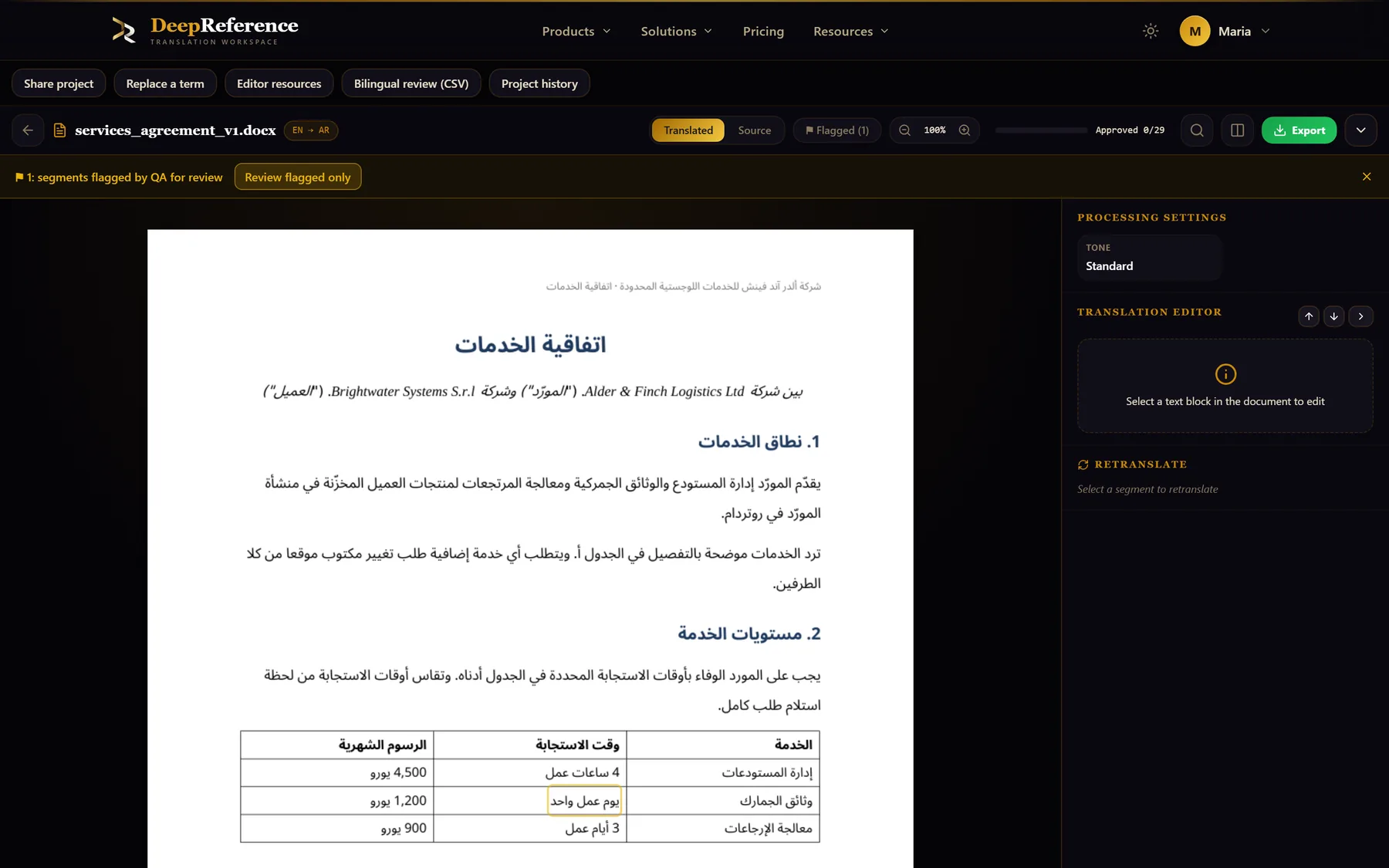
Screenshots from DeepReference. The sample contract is between two fictional companies.
Capabilities
What you can do here
Quality controls
The controls shown on this page are part of the working product, with plan access noted in the documentation.
Office files and PDFs
Work with DOCX, PDF, XLS/XLSX, and PPT/PPTX. Each format follows its own extraction and rebuild path.
Structure-aware rebuilding
Preserve supported styles, headings, lists, tables, images, headers, footers, slides, and spreadsheet structure while replacing the text.
Spreadsheet and slide handling
Translate spreadsheet cells without rewriting formulas and place translated presentation text back into the existing slide design.
Full project controls
Apply source detection, target language, tone, glossary, translation memory, and account CAT settings to the job.
Presets for repeat work
Save a client or content setup once, then apply the same language pair and translation controls to later uploads in one click.
Analysis before review
Count source words, repetitions, and TM match bands to understand how much content is new and how much can be reused.
Background processing and delivery
The job continues on the server if you close the page. Ask for an email when a long translation finishes.
Review and flexible export
Review supported office documents in the editors, then download the rebuilt format, a plain-text export, or the unchanged source file. Newly translated PDFs support text edits in the Translation Editor; protected layout units remain read-only.
Where it helps
Document Translation
- Contracts, policies, and regulatory files
- Technical manuals and product documentation
- Reports, research, and internal publications
- Sales decks, training slides, and presentations
- Operational spreadsheets and data workbooks
- Styled documents that would be costly to rebuild by hand
A practical workflow
How the work moves
Upload the file
Choose the document, source language or auto-detect, and target language from the dashboard.
Apply the right setup
Select a preset or set the tone, glossary, memory, and delivery preference for this job.
Let the job run
DeepReference extracts the content, translates its segments, and rebuilds the output on the server while progress remains available in the document list.
Review and export
Open an available editor for a human pass, or download the translated file directly when no editing is needed.
Related pages
PDF Translation
Translate PDFs with selectable text and get a rebuilt PDF that follows the source layout where possible. Scans need OCR first and must be saved as searchable PDFs.
Word Document Translation
Translate a Word document and get a DOCX back with its styles, tables, and structure intact — then read the result in its real page layout before you send it.
Put it to work
Open the dashboard to start a translation, or read the detailed guide first.