Document Editor
View the translated DOCX in its original layout, like a document viewer, and edit any paragraph in place. You read a page, not a list of disconnected sentences, so the page itself becomes part of the review.
See it in the workspace
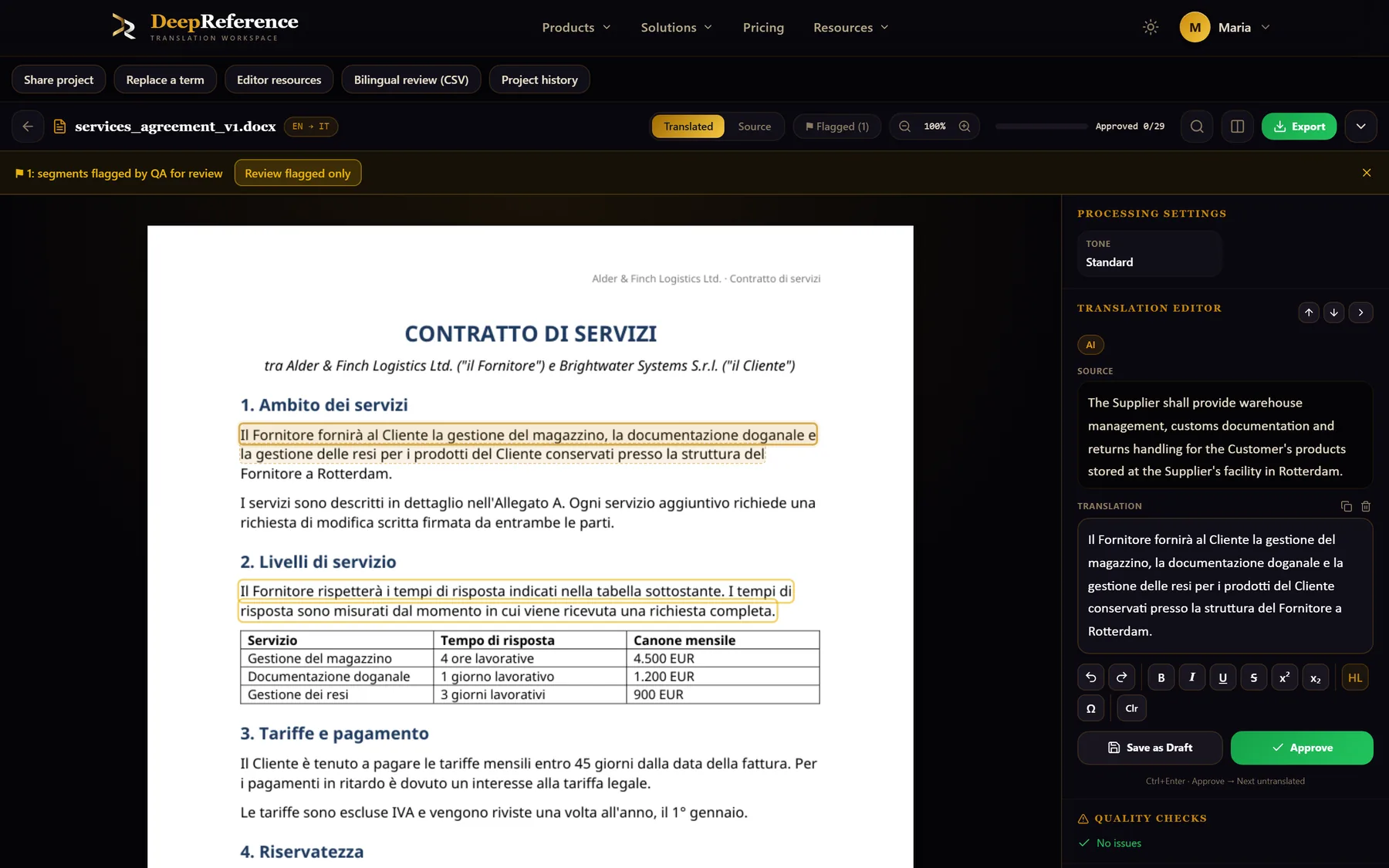
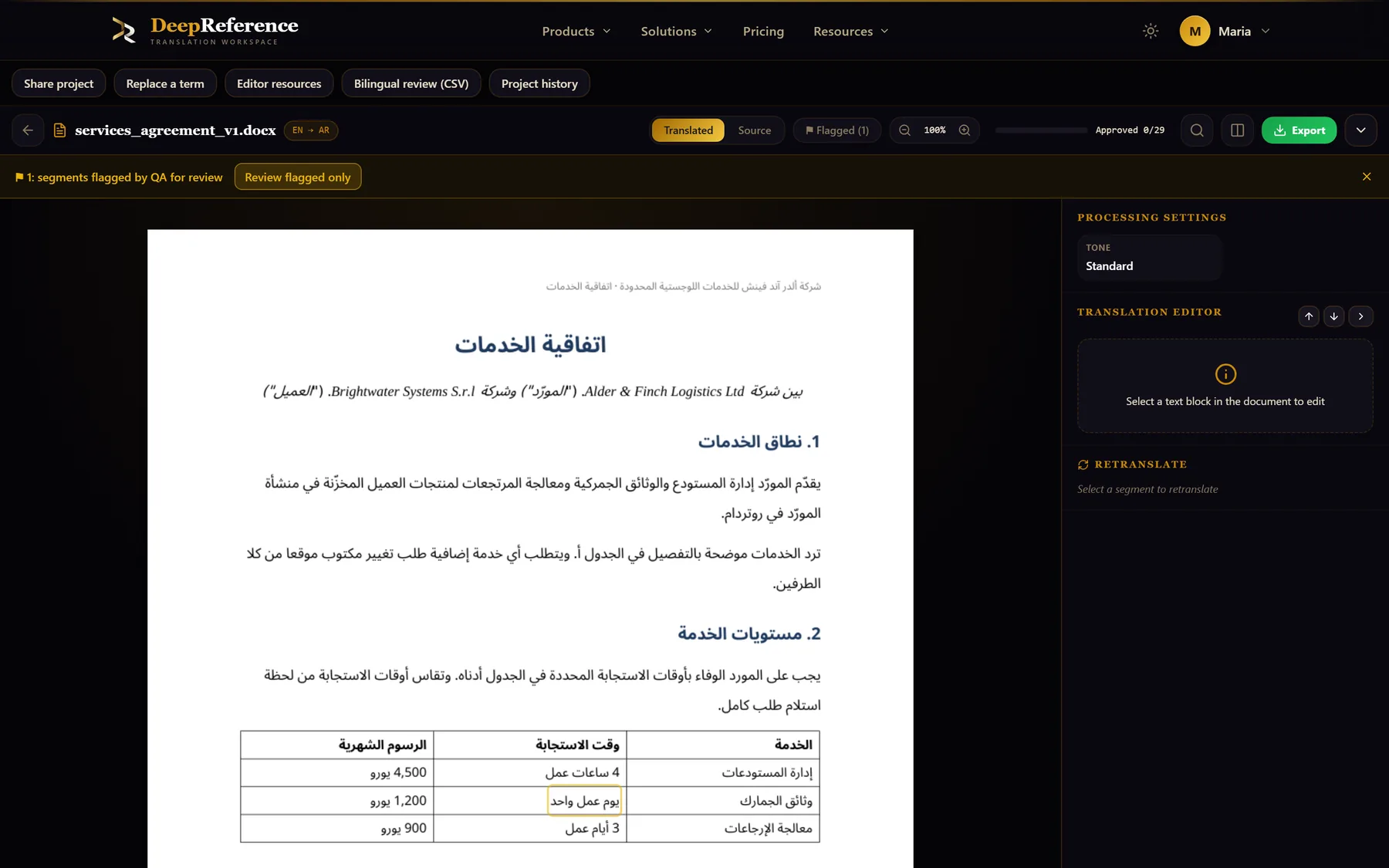
Screenshots from DeepReference. The sample contract is between two fictional companies.
Capabilities
What you can do here
Quality controls
The controls shown on this page are part of the working product, with plan access noted in the documentation.
Rendered DOCX context
Review translated text with the document's styles, headings, tables, images, lists, and surrounding content visible.
Click the page to edit
Select text in the rendered document and edit the linked target segment in the side panel without losing your place.
The same review evidence
Check QA issues, glossary hits, termbase suggestions, exact and fuzzy TM matches, and concordance results for the selected segment.
Formatting and smart suggestions
Use the full formatting toolbar and accept glossary, termbase, or memory completions at the caret while you type.
Source and target comparison
Switch the rendered page between source and translation, zoom dense layouts, and catch text that is too long, missing, or misplaced.
Targeted retranslation
Request a new version of one segment with a different tone or context setting, then accept it only if it improves the page.
Shared segment state
Edits, drafts, approvals, comments, and history use the same underlying segments as the Translation editor, so both views stay in step.
Rebuild after review
Approved changes flow into the next document rebuild and the available original-format and text exports.
Where it helps
Document Editor
- Styled DOCX reports and proposals
- User guides with screenshots and callouts
- Contracts with tables and structured clauses
- Forms, policies, and branded templates
- Final layout and fit checks
- Review by people who prefer a page over a CAT grid
A practical workflow
How the work moves
Open a processed DOCX
Choose Document editor from its document row. PDF text can be revised in the Translation Editor, while this page-layout editor remains specific to DOCX.
Read the page as a reader would
Switch between source and target when useful, zoom in on dense areas, and look for wording that does not fit its visual role.
Select, correct, and approve
Click the relevant text, edit in the panel, use the language assets and QA evidence, then save a draft or approve the segment.
Export the reviewed result
Rebuild after the final changes so the downloaded document includes the latest approved segment text.
Put it to work
Open the dashboard to start a translation, or read the detailed guide first.